- About Us
-
 Secure, unlimited storage to ensures efficiency as well as high and continuous data access demand.
 Virtual server integration for 3D Rendering, AI or ML
 Enhance application capacity and availability.
 Access to an all-inclusive stack for AI development, driven by NVIDIA’s powerful technology!
 FPT Web Application Firewall provides powerful protection for web applications
 Advanced virtual server with rapid scalability
 Backup and restore data instantly, securely and maintain data integrity.
Advanced virtual server with rapid scalability
Access to an all-inclusive stack for AI development, driven by NVIDIA’s powerful technology!
Enhance application capacity and availability.
Backup and restore data instantly, securely and maintain data integrity.
Recovery, ensuring quick operation for the business after all incidents and disasters.
Backup and restore data instantly, securely and maintain data integrity.
Advanced virtual server with rapid scalability
Access to an all-inclusive stack for AI development, driven by NVIDIA’s powerful technology!
Enhance application capacity and availability.
Backup and restore data instantly, securely and maintain data integrity.
Recovery, ensuring quick operation for the business after all incidents and disasters.
 Diverse throughput and capacity to meet various business workloads.
Secure, unlimited storage to ensures efficiency as well as high and continuous data access demand.
FPT Web Application Firewall provides powerful protection for web applications
Intelligent and Comprehensive Virtual Web Application Firewall - Security Collaboration between FPT Cloud and Penta Security.
The Next generation firewall security service
Easily store, manage, deploy, and secure Container images
Safe, secure, stable, high-performance Kubernetes platform
Provided as a service to deploy, monitor, backup, restore, and scale MongoDB databases on cloud.
Provided as a service to deploy, monitor, backup, restore, and scale Redis databases on cloud.
Provided as a service to deploy, monitor, backup, restore, and scale PostgreSQL databases on cloud. System Monitoring Solution anywhere, anytime, anyplatform
 Helps reduce operational costs by up to 40% compared to traditional BI solutions, while improving efficiency through optimized resource usage and infrastructure scaling.
 - Pricing
- Partner
- Event


1. Create Queues
After successfully registering the service, RabbitMQ configuration operations will be carried out entirely within the RabbitMQ Application.
First, you can create queues as follows:
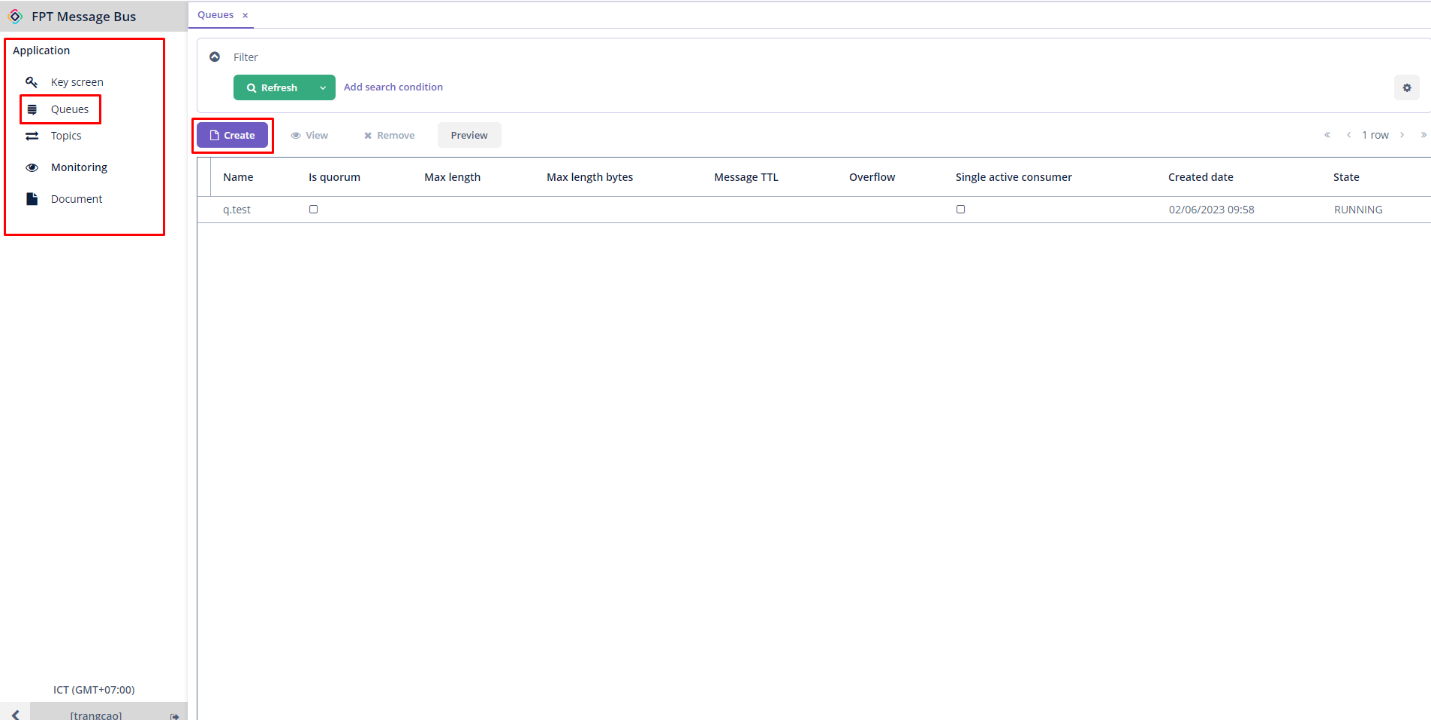
Step 1: From the menu, navigate to Application > Queues > Create
Step 2: Enter the necessary information:
-
Name (required): The name of the queue.
-
Max length: The maximum amount of messages that can be held in a queue.
-
Message TTL: The amount of time that messages remain valid from the moment they are published. If it exceeds this time, the message will be lost.
-
Overflow: You can select from drop_head, reject_publish, or reject_publish_DLX modes.
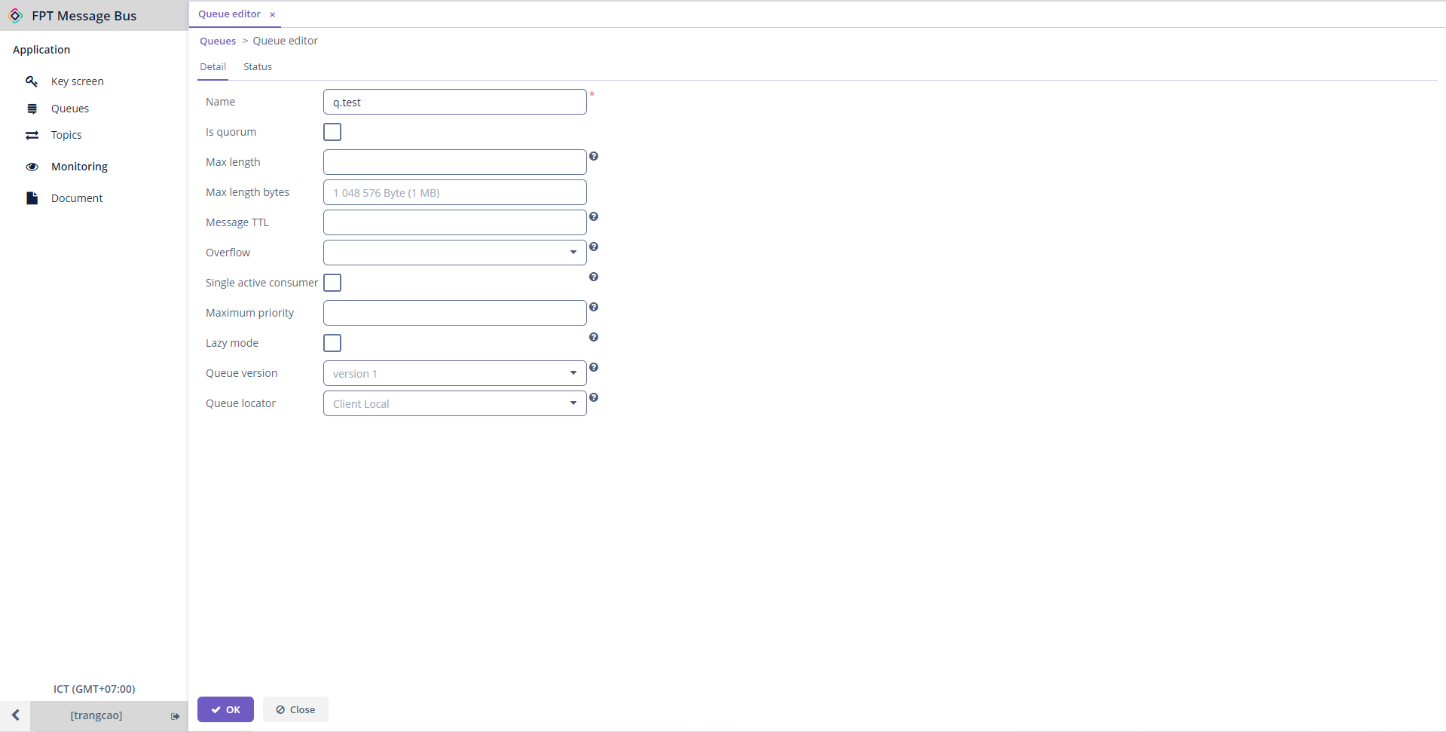
Step 3: Click OK to proceed with creating the queue.
2. Send and Receive Messages
To publish messages and push them into a queue, follow these steps:
Step 1: From the menu, navigate to Application > Queues > Choose a desired queue > Preview
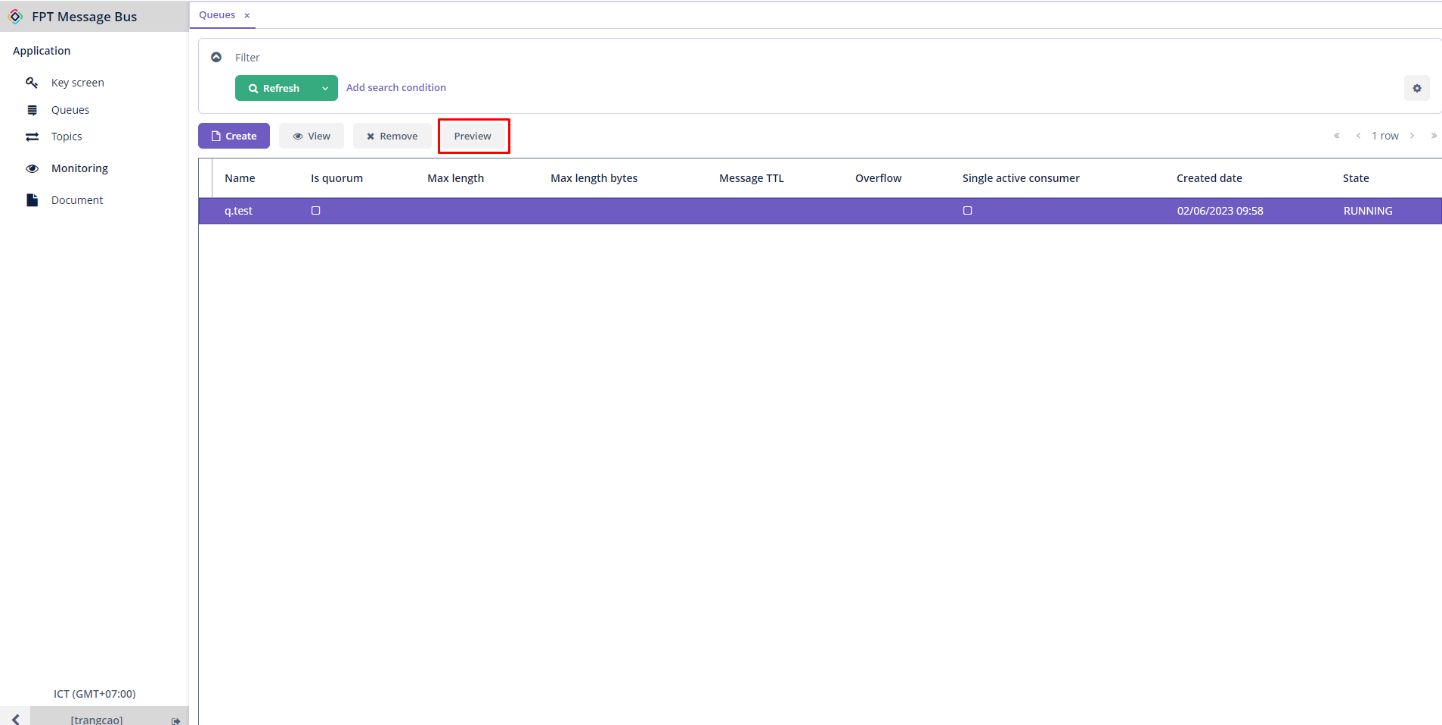
Step 2: Enter the message you want to publish into the Payload field in the Send tab.
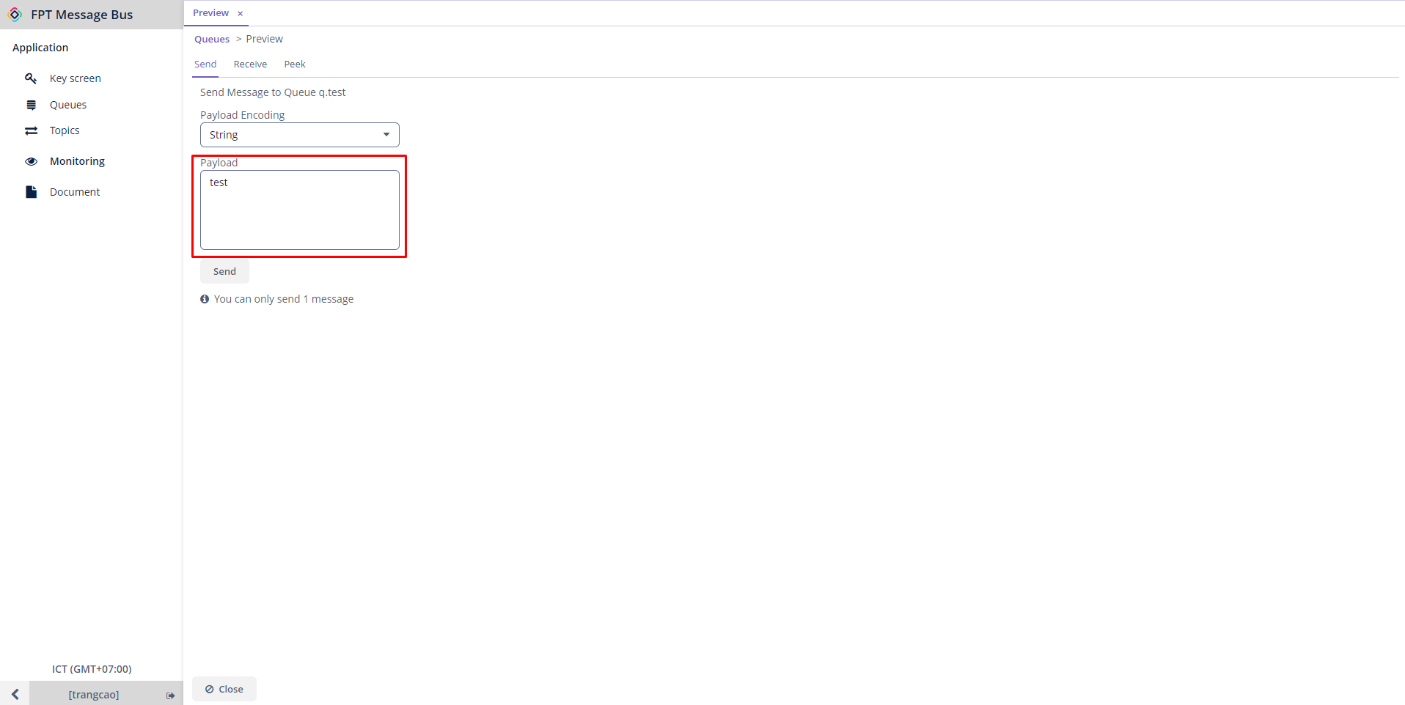
Step 3: Click Send to send the message.
Now, you have successfully published messages to the queue.
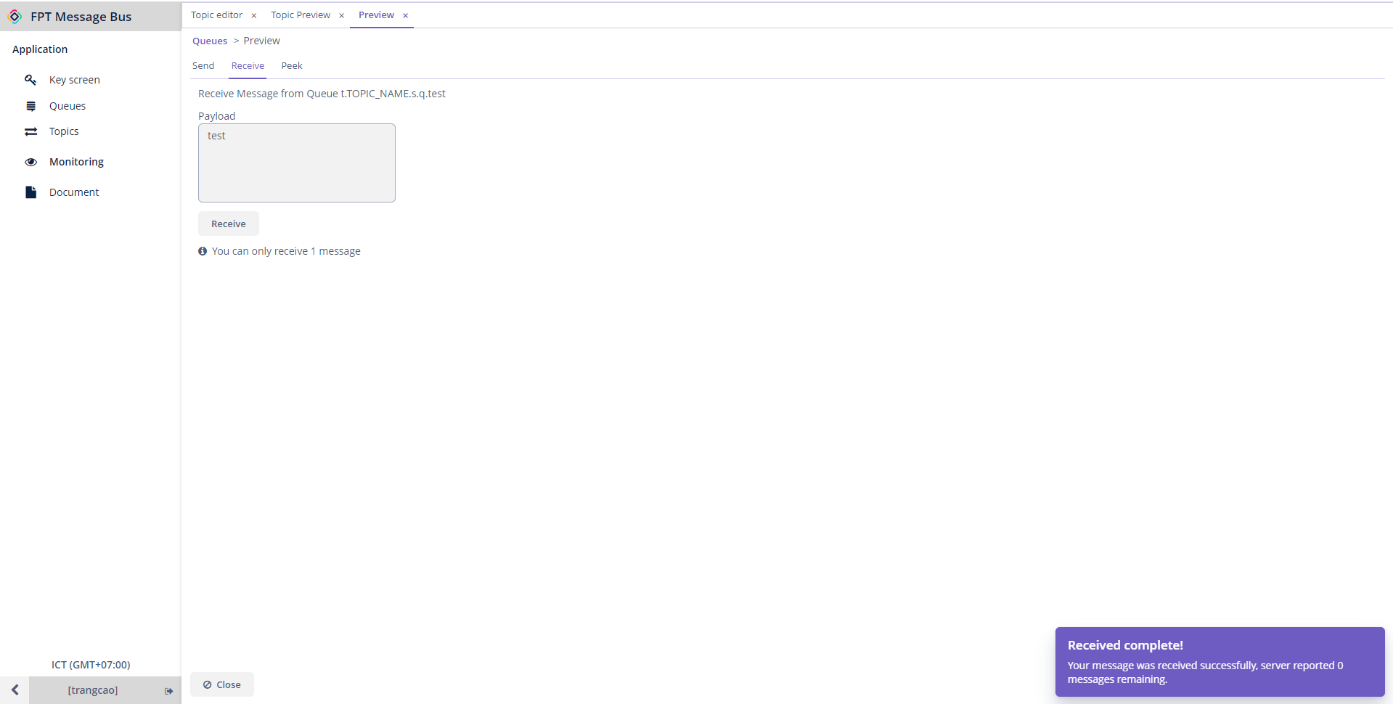
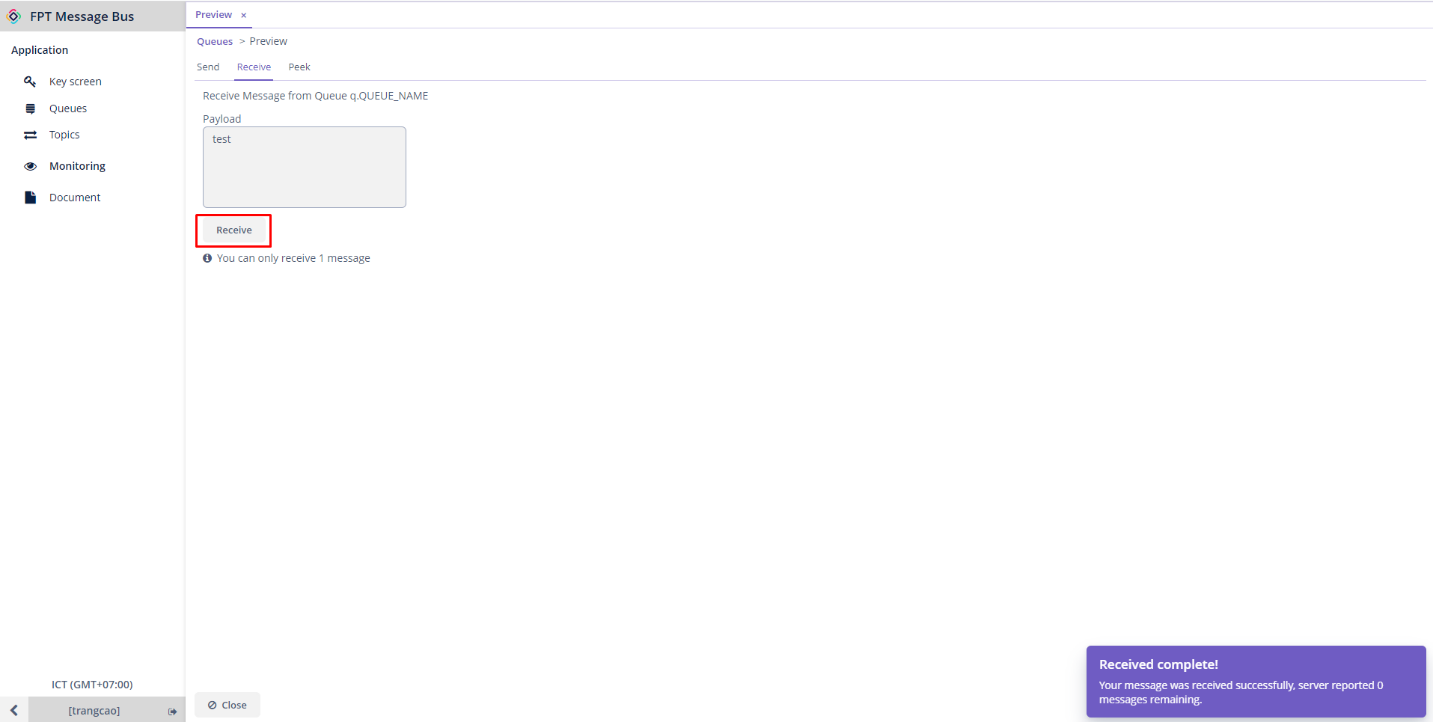
To receive messages, navigate to the Receive tab > Click Receive.
3. Create a Topic
You can create a topic by following these steps:
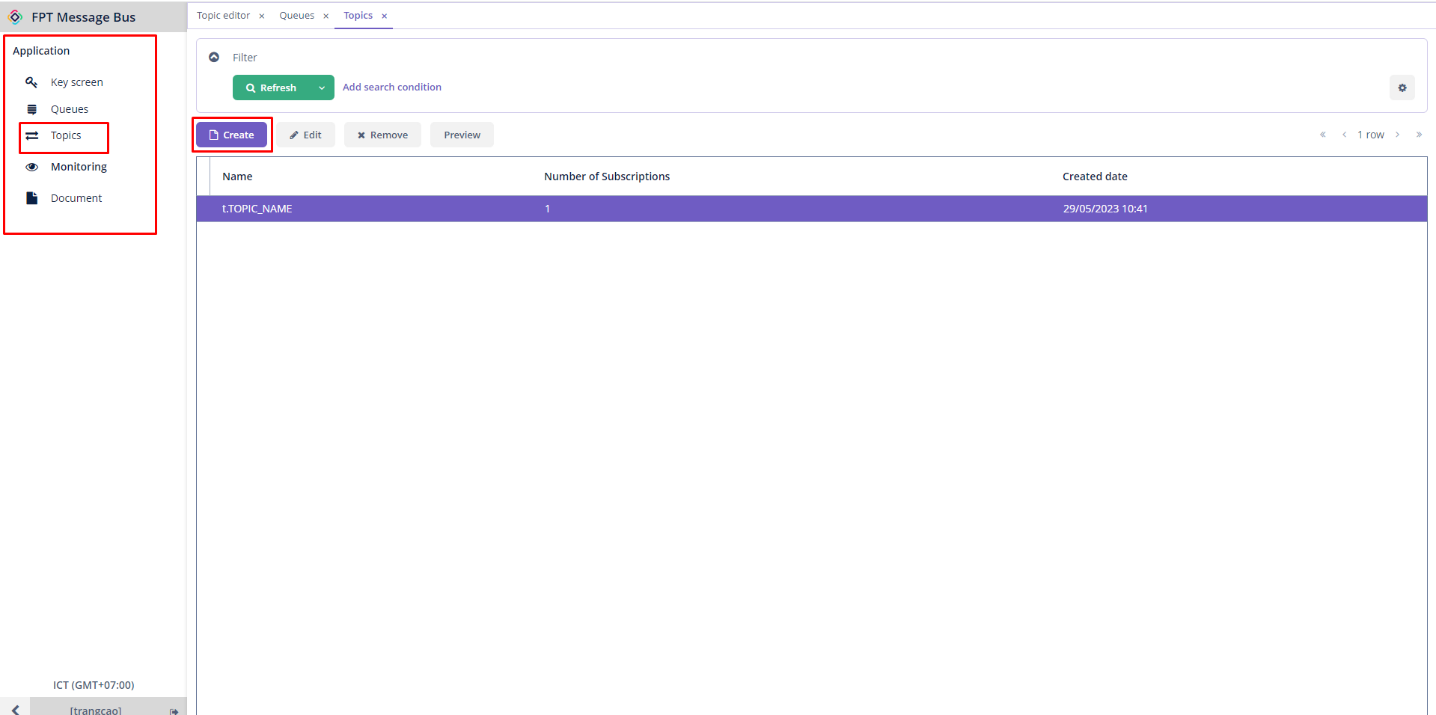
Step 1: From the menu, navigate to Application > Topics > Click Create
Step 2: Enter the necessary information:
- Name (required): The name of the topic
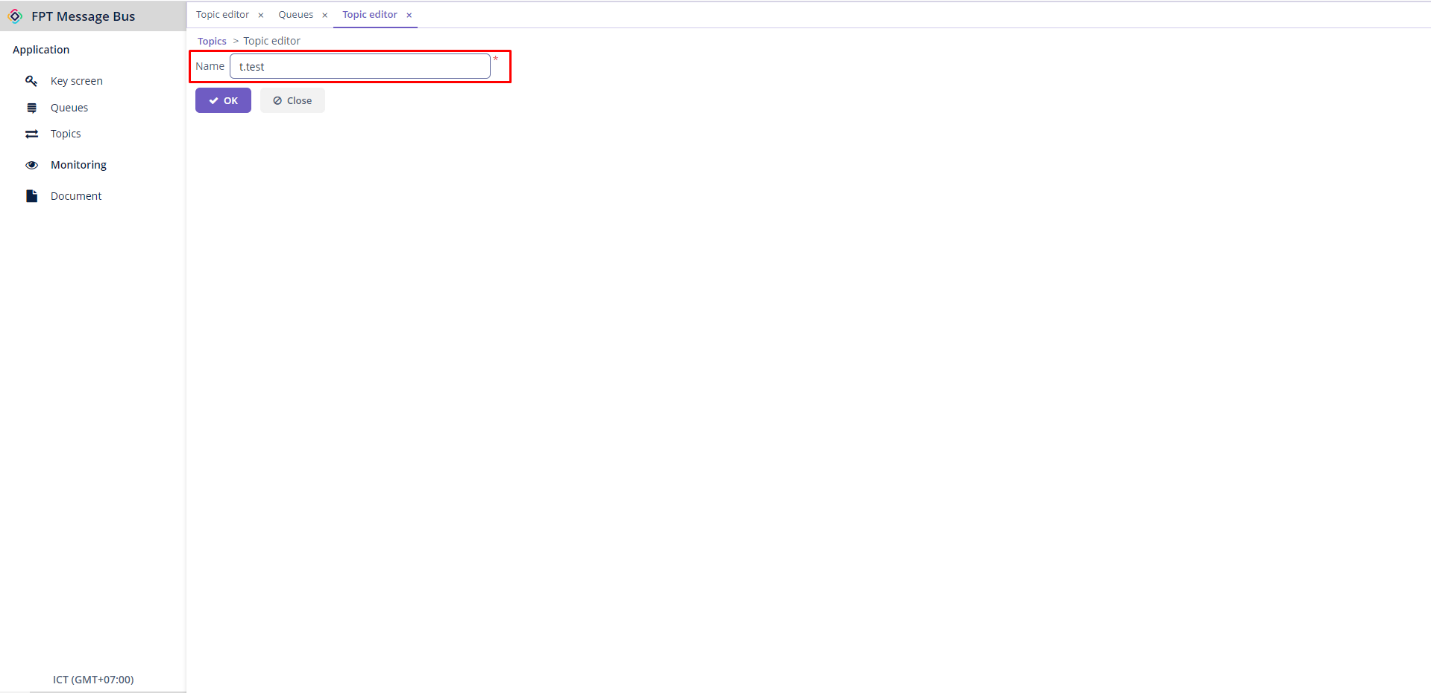
Step 3: Click OK to create the topic.
4. Create Subscriptions
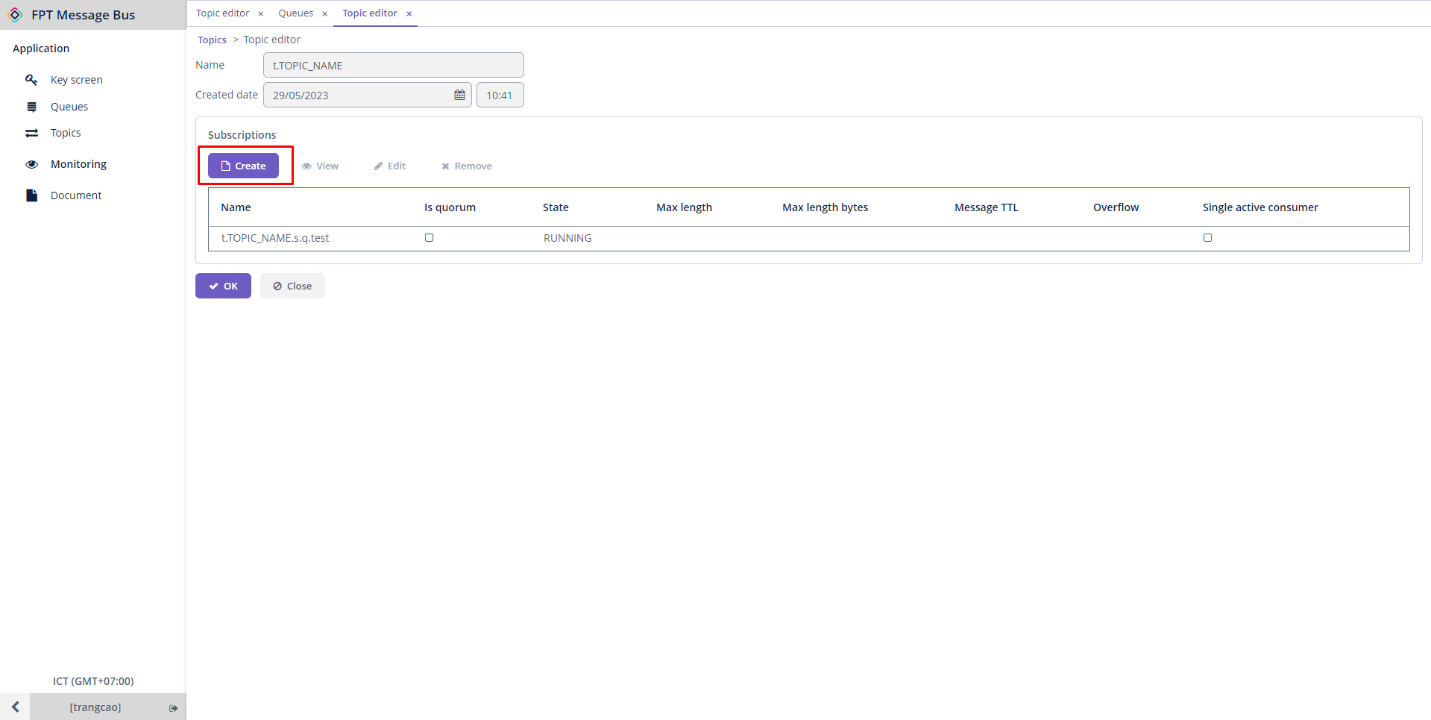
To send and receive messages within a topic, you need to create subscriptions to subscribe to that topic. Follow these steps:
Step 1: Choose a desired topic > Edit > Click Create in the Subscriptions section
Step 2: Enter the necessary information:
-
Name (required): The name of the queue.
-
Max length: The maximum amount of messages that can be held in a queue.
-
Message TTL: The amount of time that messages remain valid from the moment they are published. If it exceeds this time, the message will be lost.
-
Overflow: You can select from drop_head, reject_publish, or reject_publish_DLX modes.
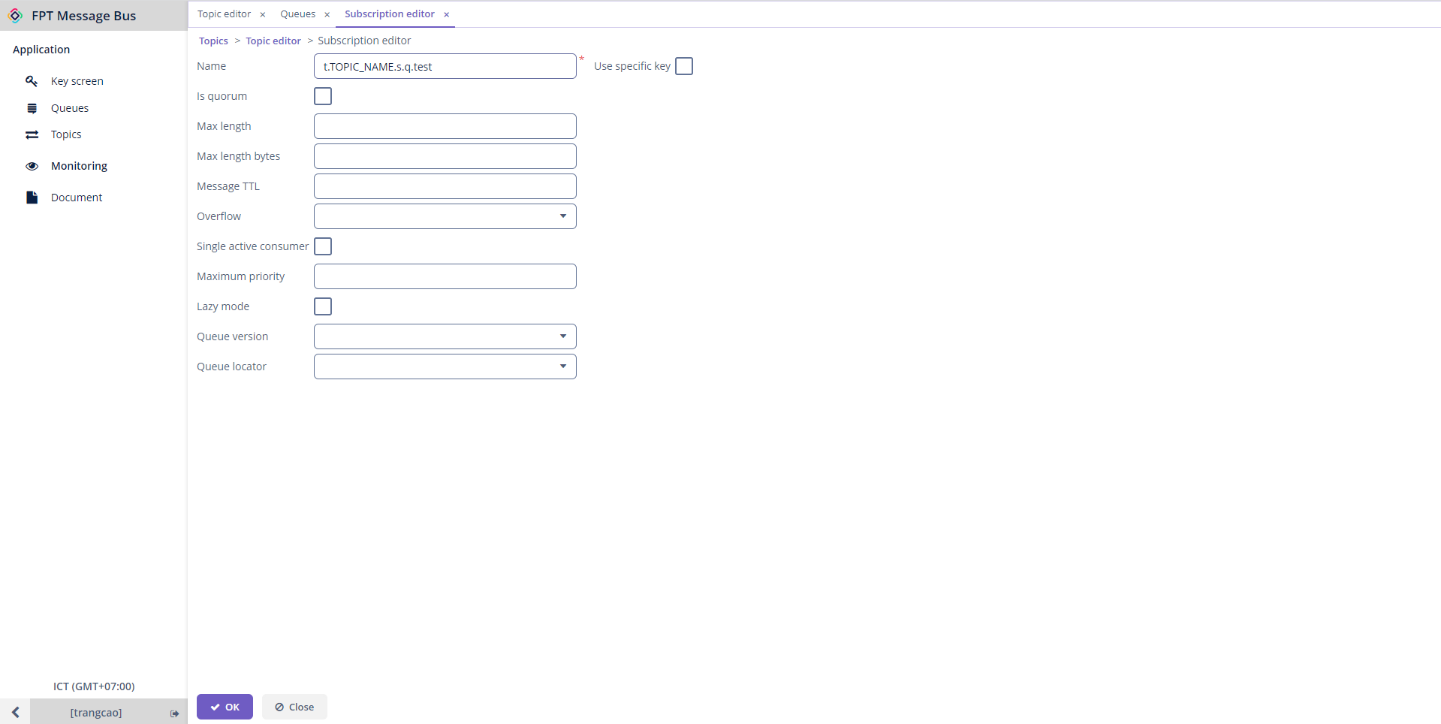
Step 3: Click OK to proceed with creating the subscription.
5. Send and Receive Messages within a Topic
When a message is published within a topic, all subscriptions that have subscribed to the topic can receive the message.
First, to publish a message within a topic, follow these steps:
Step 1: From the menu, navigate to Application > Topics > Choose a desired topic > Preview
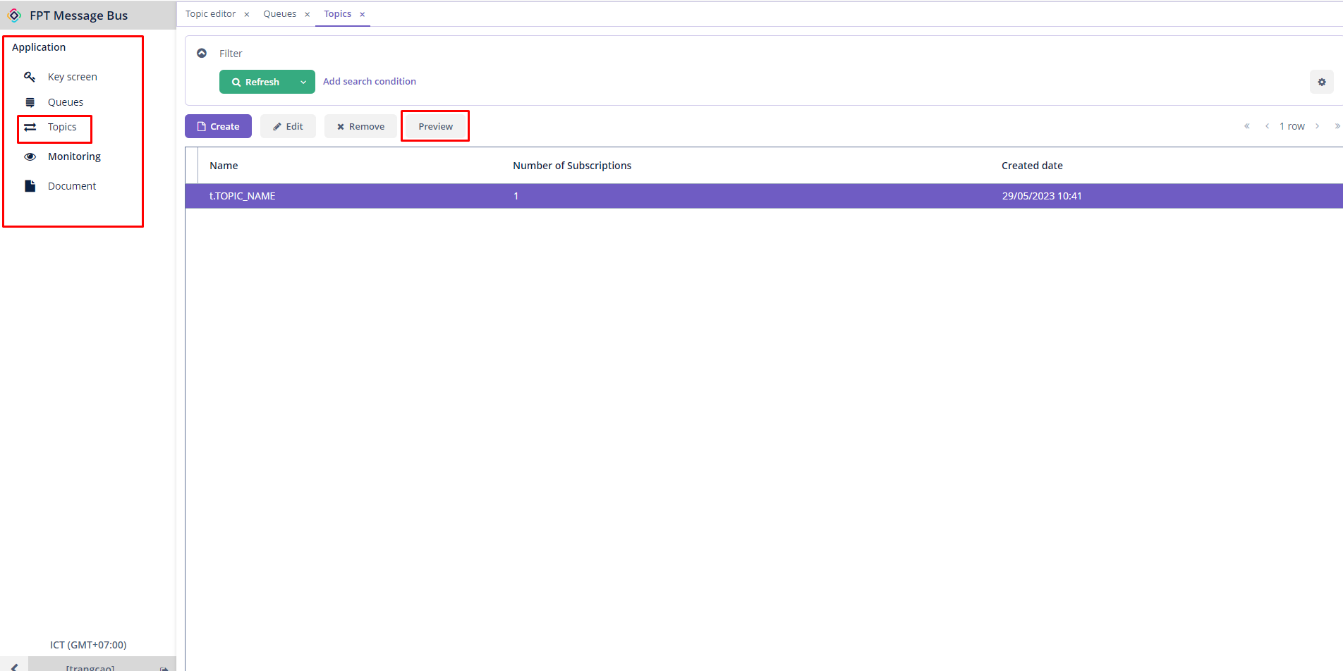
Step 2: Enter the message you want to publish into the Payload field.
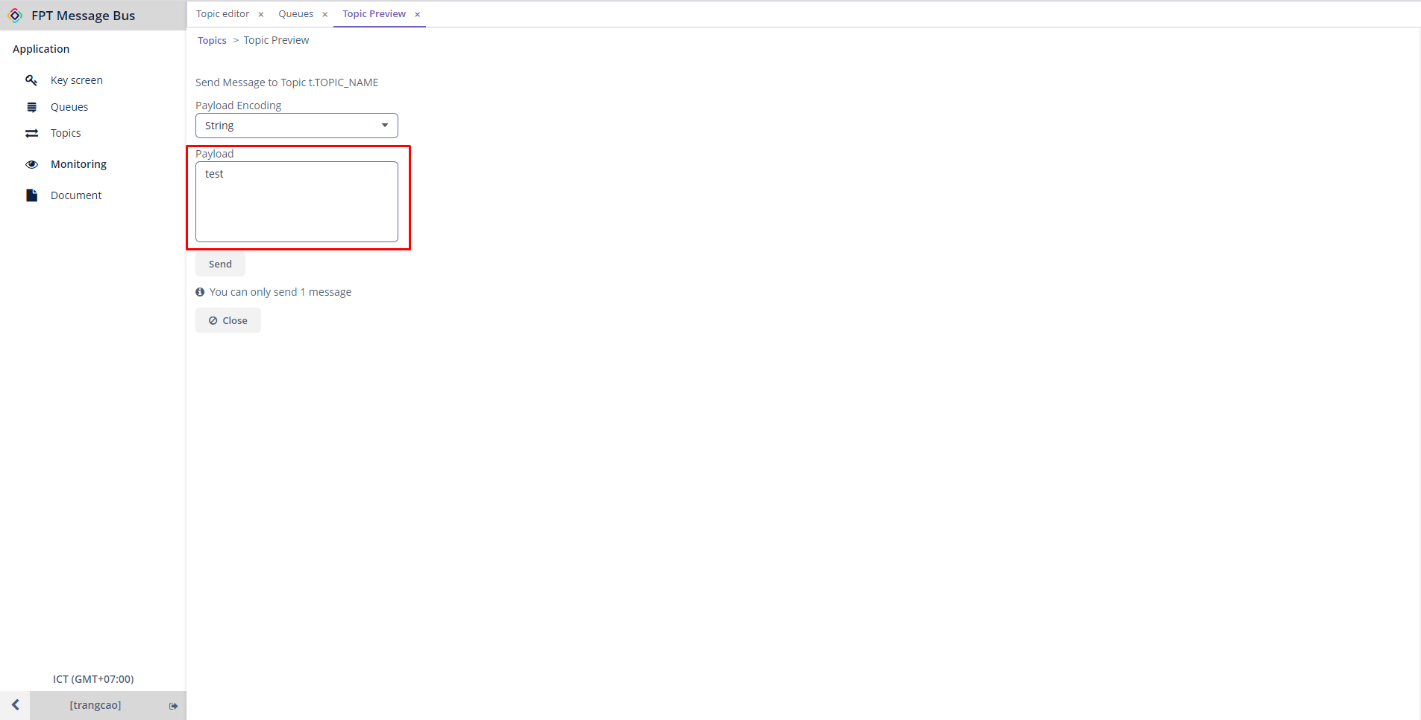
Step 3: Click Send to send the message.
To receive the published messages from the subscriptions, follow these steps:
Step 1: From the Application menu > Queues > Choose a desired subscription > Preview
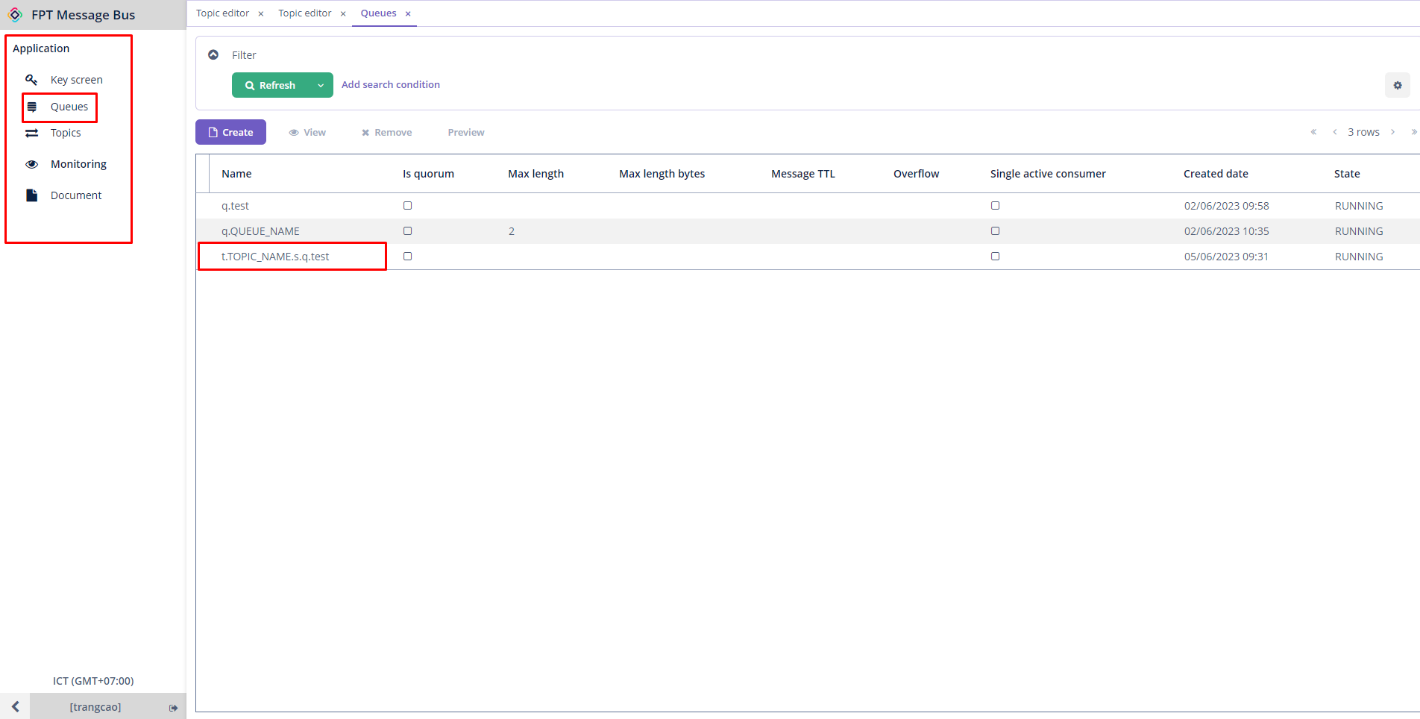
Step 2: Select the Receive tab > Click Receive to receive the message that has been published.