
- About Us
-
 Secure, unlimited storage to ensures efficiency as well as high and continuous data access demand.
 Virtual server integration for 3D Rendering, AI or ML
 Enhance application capacity and availability.
 Access to an all-inclusive stack for AI development, driven by NVIDIA’s powerful technology!
 FPT Web Application Firewall provides powerful protection for web applications
 Advanced virtual server with rapid scalability
 Backup and restore data instantly, securely and maintain data integrity.
Advanced virtual server with rapid scalability
Access to an all-inclusive stack for AI development, driven by NVIDIA’s powerful technology!
Enhance application capacity and availability.
Backup and restore data instantly, securely and maintain data integrity.
Recovery, ensuring quick operation for the business after all incidents and disasters.
Backup and restore data instantly, securely and maintain data integrity.
Advanced virtual server with rapid scalability
Access to an all-inclusive stack for AI development, driven by NVIDIA’s powerful technology!
Enhance application capacity and availability.
Backup and restore data instantly, securely and maintain data integrity.
Recovery, ensuring quick operation for the business after all incidents and disasters.
 Diverse throughput and capacity to meet various business workloads.
Secure, unlimited storage to ensures efficiency as well as high and continuous data access demand.
FPT Web Application Firewall provides powerful protection for web applications
Intelligent and Comprehensive Virtual Web Application Firewall - Security Collaboration between FPT Cloud and Penta Security.
The Next generation firewall security service
Easily store, manage, deploy, and secure Container images
Safe, secure, stable, high-performance Kubernetes platform
Provided as a service to deploy, monitor, backup, restore, and scale MongoDB databases on cloud.
Provided as a service to deploy, monitor, backup, restore, and scale Redis databases on cloud.
Provided as a service to deploy, monitor, backup, restore, and scale PostgreSQL databases on cloud. System Monitoring Solution anywhere, anytime, anyplatform
 Helps reduce operational costs by up to 40% compared to traditional BI solutions, while improving efficiency through optimized resource usage and infrastructure scaling.
 - Pricing
- Partner
- Event
Managed – FPT Database Engine
-
 Concepts
-
 Initial Setup
-
 Tutorials
-
 Peformance & Benchmark
-
 Troubleshooting
-
 FAQs
FAQs
-
 Glossary
-
Database Proxy (DB Proxy) is an intermediary layer between applications and database servers. It manages and routes client connections, performs load balancing, and directs connections to the appropriate database nodes without requiring changes to application code or database configuration, thereby improving system high availability.
Currently, FPT Database Engine supports DB Proxy for the following database engines: MySQL, PostgreSQL, and MariaDB. DB Proxy is available only for databases deployed in High Availability (HA) mode.
On the FPT Cloud Portal, the DB Proxy Management feature allows users to:
- Create and manage DB Proxies.
- Monitor the operational status of DB Proxies.
- Perform operational actions such as Start, Stop, Restart, Resize, and Delete.
- View detailed configuration information and proxy nodes.
Requiredment Permissions:
| Permission | Action Type | Description |
|---|---|---|
| manageDatabase:ListProxy | View | Allow viewing the database's DB Proxy list. |
| manageDatabase:CreateProxy | Create | Allow creating a new DB proxy for a database in the system. |
| manageDatabase:DeleteProxy | Delete | Allow deleting a DB Proxy for databases in the system. |
1. Access DB Proxy Management
Log in to the FPT Cloud Portal. After a successful login, from the main menu, select “Database Platform” > “All Databases”. Click the ID of the database cluster you want to manage, then switch to the DB Proxy tab to access the DB Proxy Management page:
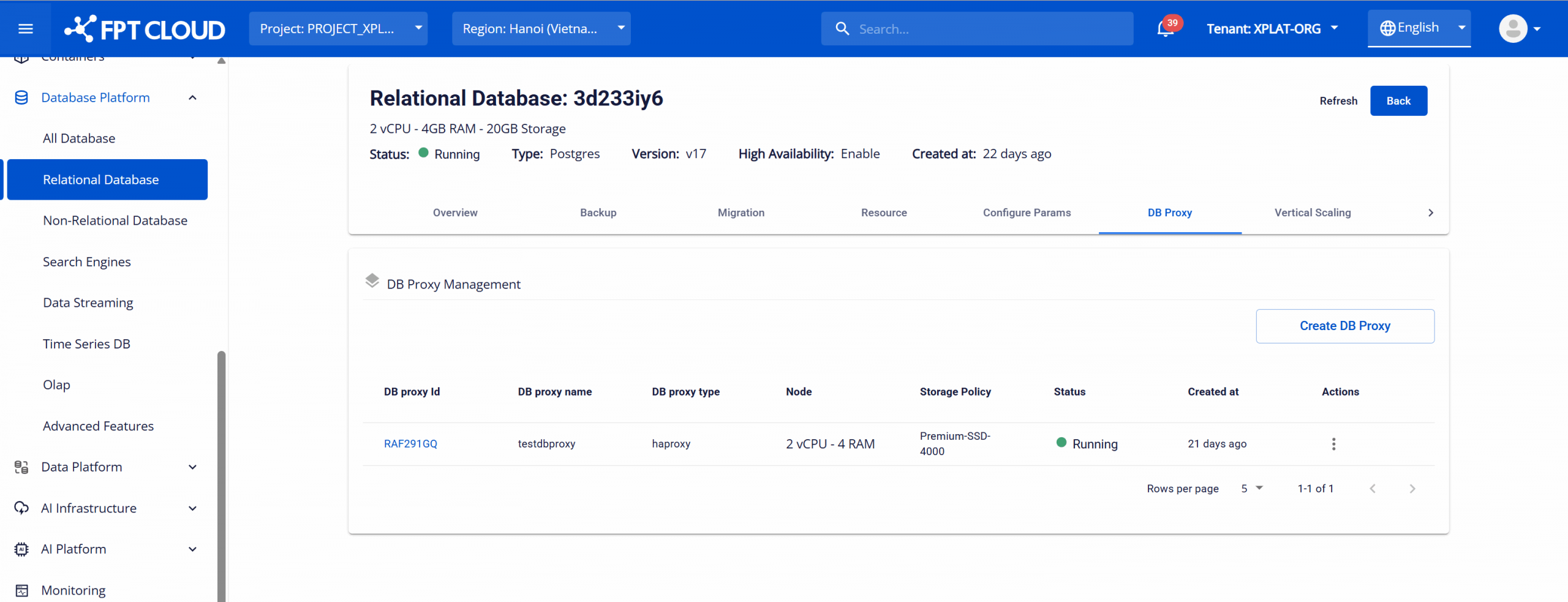
Note: The DB Proxy tab is displayed only when the database is created with High Availability (HA) enabled and the database engine is supported.
2. Create a DB Proxy
On the DB Proxy Management page, click Create DB Proxy. The Create DB Proxy dialog is displayed:
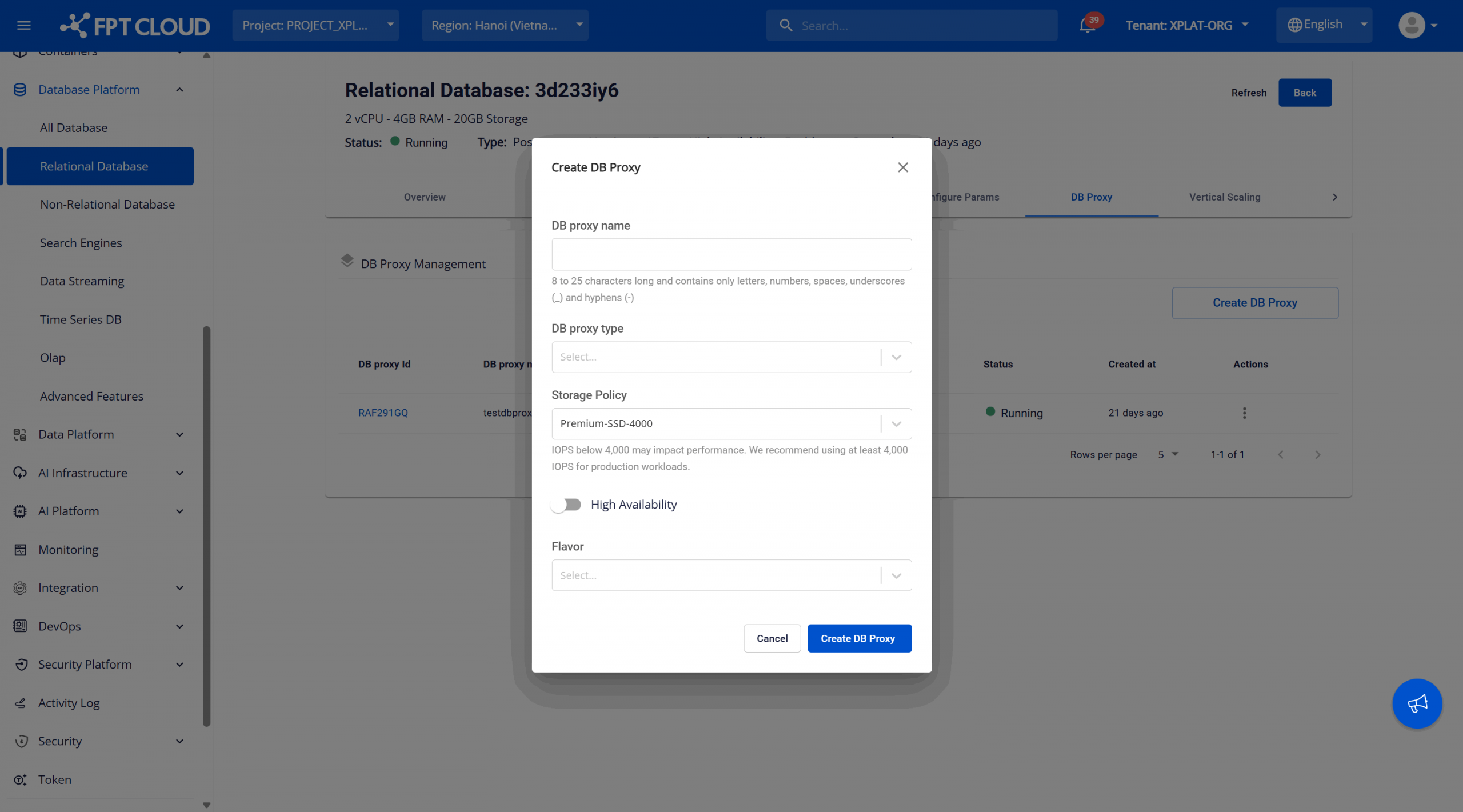
Provide the following information:
- DB proxy name: A unique identifier for the proxy. The name must be 8–25 characters long and can contain only letters, numbers, and hyphens (-).
- DB proxy type: Select the proxy type. Currently, HAProxy is the only supported option in FPT Database Engine.
- Storage Policy: Select a storage policy to define the storage performance (IOPS) for the proxy.
- High Availability: Enable this option to deploy the DB Proxy in High Availability (HA) mode.
- Flavor: Select the resource configuration (vCPU and RAM) for the DB Proxy.
After completing the configuration, click Create DB Proxy to confirm. The system validates resource availability, displays a creation notification, and starts provisioning the DB Proxy based on the selected settings. The newly created proxy appears at the top of the DB Proxy Management list with the status Processing.
The provisioning process typically takes 5–7 minutes. Once completed, the proxy status changes to Running and the proxy is ready for use. Note: If the provisioning process fails, delete the failed proxy and create a new one..
3. View Connection Information
To view connection details for a DB Proxy, go to the DB Proxy Management page and select the proxy ID. The DB Proxy Detail dialog is displayed, showing endpoint and configuration information:
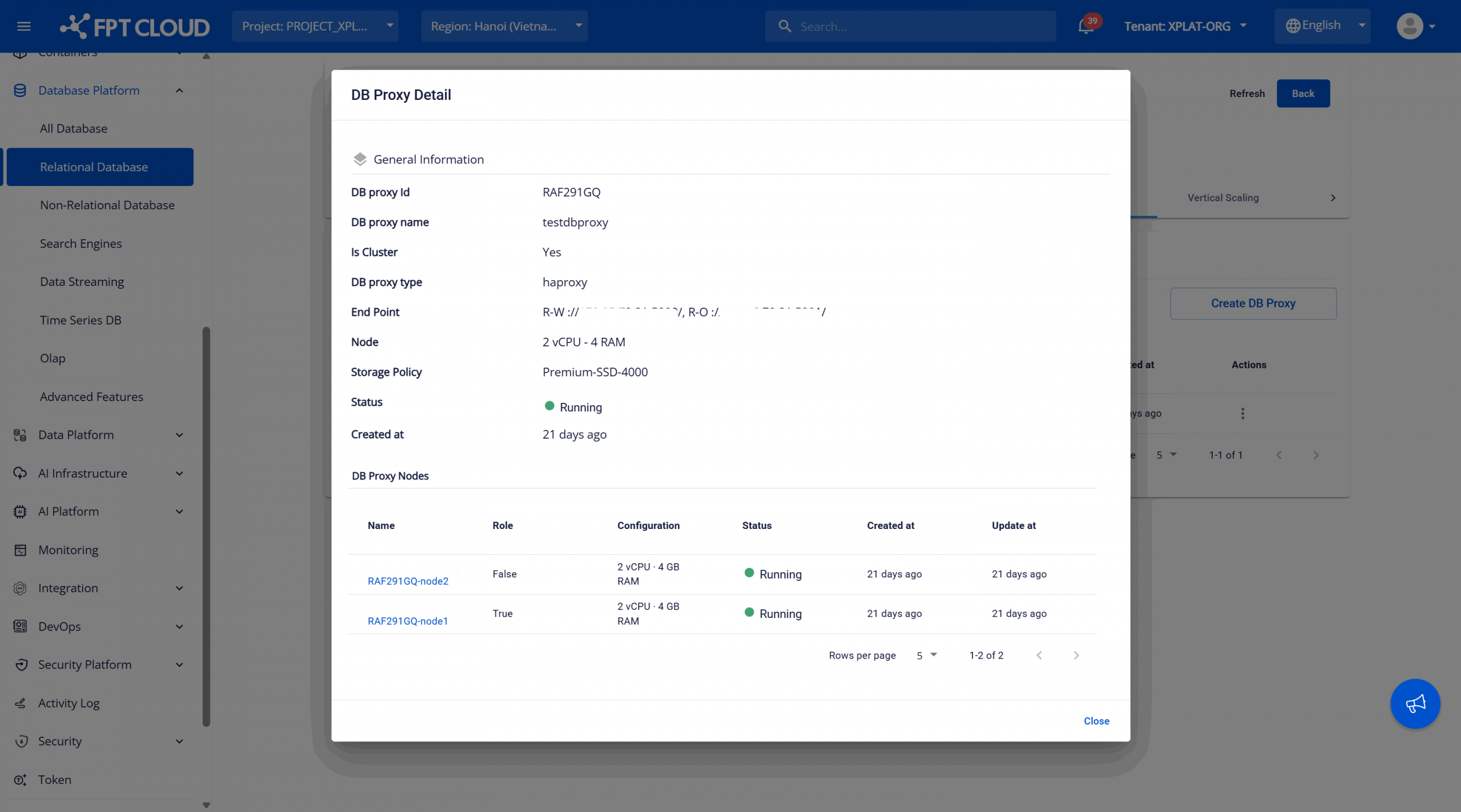
A Running status indicates that the DB Proxy is active and ready to accept connections. Use the information provided in the Endpoint field to configure application connections to the proxy.
4. DB Proxy Operations
You can perform operational actions on a DB Proxy based on its lifecycle status, including Start, Stop, Restart, Resize, and Delete.
Available Actions:
- Start: Starts a DB Proxy that is currently in the "Stopped" state. When initiated, the proxy status changes to "Starting" and then to "Running" once it is ready to serve traffic.
- Stop: Stops a running DB Proxy. When stopped, the proxy temporarily suspends workload processing. The status changes to "Stopping" and then to "Stopped". While in this state, all connections through the proxy are interrupted.
- Restart: Restarts a running DB Proxy. This action stops and then starts the proxy, and is typically used to recover from transient issues. The status changes to "Restarting" and returns to "Running" when the operation completes.
- Resize: Changes the resource configuration (Flavor) of the DB Proxy. During this operation, the status changes to "Resizing" and returns to "Running" after the resize is completed.
- Delete: Permanently deletes a DB Proxy. This action cannot be undone. After successful deletion, the proxy is removed from the list and all associated resources are released.
Action availability by database status:
| Status | Meaning | Actions Available |
|---|---|---|
| Processing | The proxy is provisioning. | Delete |
| Running | The proxy is operating normally. | Stop, Restart, Resize, Delete |
| Stopped | The proxy is stopped. | Start, Delete |
| Resizing | The proxy is currently having its resources adjusted. | Delete |
| Failed | The proxy encountered an unknown error. If the proxy is no longer needed, delete it to clean up resources, or contact FPT Support for assistance. | Delete |
Performing Operational Actions:
To perform an operation, open the DB Proxy Management page and select the More actions (⋯) icon in the Actions column for the target proxy. A list of available actions is displayed:
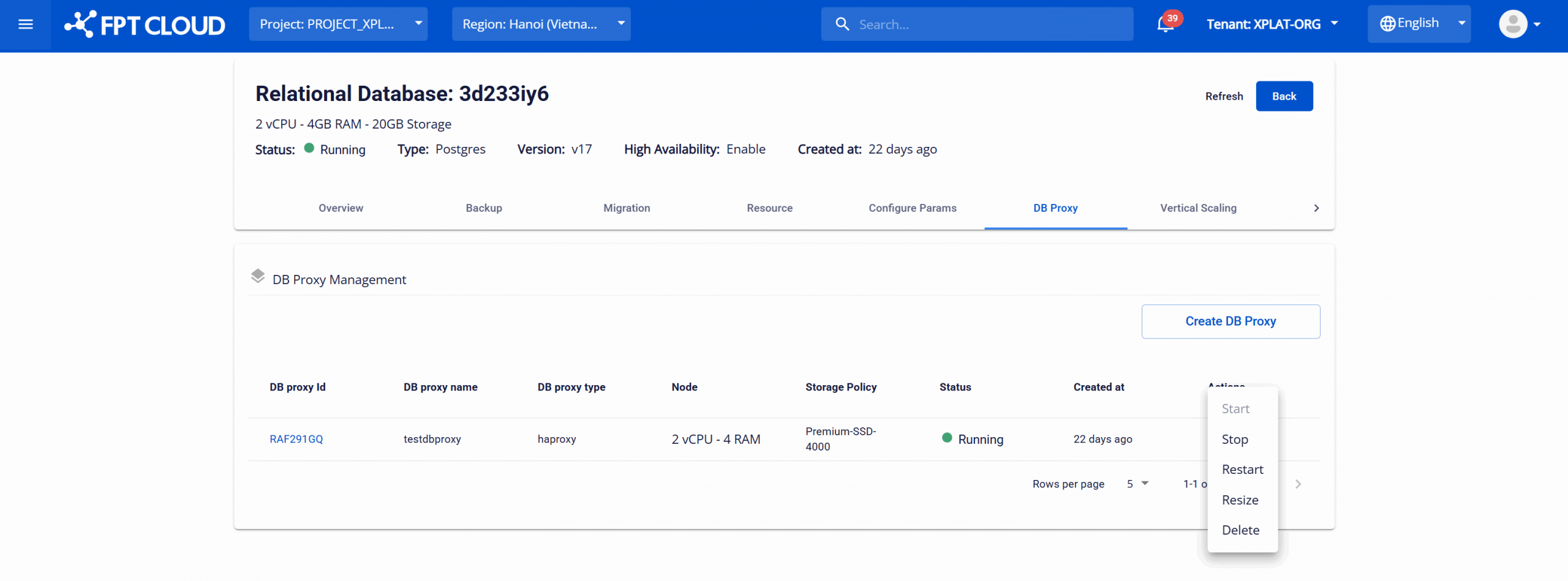
When you select an action, a confirmation dialog appears. Manual confirmation is required to prevent accidental or unintended operations, especially for irreversible actions such as Delete.
After confirmation, the system executes the selected action, which typically takes 5–7 minutes. During this time, other operations on the proxy are temporarily disabled until the process completes.
Best Practices Perform Restart or Resize operations during off-peak hours to minimize impact on applications.