
- About Us
-
 Secure, unlimited storage to ensures efficiency as well as high and continuous data access demand.
 Virtual server integration for 3D Rendering, AI or ML
 Enhance application capacity and availability.
 Access to an all-inclusive stack for AI development, driven by NVIDIA’s powerful technology!
 FPT Web Application Firewall provides powerful protection for web applications
 Advanced virtual server with rapid scalability
 Backup and restore data instantly, securely and maintain data integrity.
Advanced virtual server with rapid scalability
Access to an all-inclusive stack for AI development, driven by NVIDIA’s powerful technology!
Enhance application capacity and availability.
Backup and restore data instantly, securely and maintain data integrity.
Recovery, ensuring quick operation for the business after all incidents and disasters.
Backup and restore data instantly, securely and maintain data integrity.
Advanced virtual server with rapid scalability
Access to an all-inclusive stack for AI development, driven by NVIDIA’s powerful technology!
Enhance application capacity and availability.
Backup and restore data instantly, securely and maintain data integrity.
Recovery, ensuring quick operation for the business after all incidents and disasters.
 Diverse throughput and capacity to meet various business workloads.
Secure, unlimited storage to ensures efficiency as well as high and continuous data access demand.
FPT Web Application Firewall provides powerful protection for web applications
Intelligent and Comprehensive Virtual Web Application Firewall - Security Collaboration between FPT Cloud and Penta Security.
The Next generation firewall security service
Easily store, manage, deploy, and secure Container images
Safe, secure, stable, high-performance Kubernetes platform
Provided as a service to deploy, monitor, backup, restore, and scale MongoDB databases on cloud.
Provided as a service to deploy, monitor, backup, restore, and scale Redis databases on cloud.
Provided as a service to deploy, monitor, backup, restore, and scale PostgreSQL databases on cloud. System Monitoring Solution anywhere, anytime, anyplatform
 Helps reduce operational costs by up to 40% compared to traditional BI solutions, while improving efficiency through optimized resource usage and infrastructure scaling.
 - Pricing
- Partner
- Event
Managed – FPT Database Engine
-
 Concepts
-
 Initial Setup
-
 Tutorials
-
 Peformance & Benchmark
-
 Troubleshooting
-
 FAQs
FAQs
-
 Glossary
-
Database resources include the Flavor (CPU and RAM) and Data Disk Size.
The Database cluster resource management feature enables users to monitor and adjust the resources allocated to a database cluster, including CPU and RAM (Flavor), data disk capacity, and storage policy, to meet performance and capacity requirements during operation.
Detailed instructions are provided in the sections below.
1. View database cluster resource information
On the menu bar, select Database Platform > select All Database or the menu corresponding to the appropriate database engine group for the cluster > click the Cluster ID > select the Resource tab to enter the database cluster resource management screen.
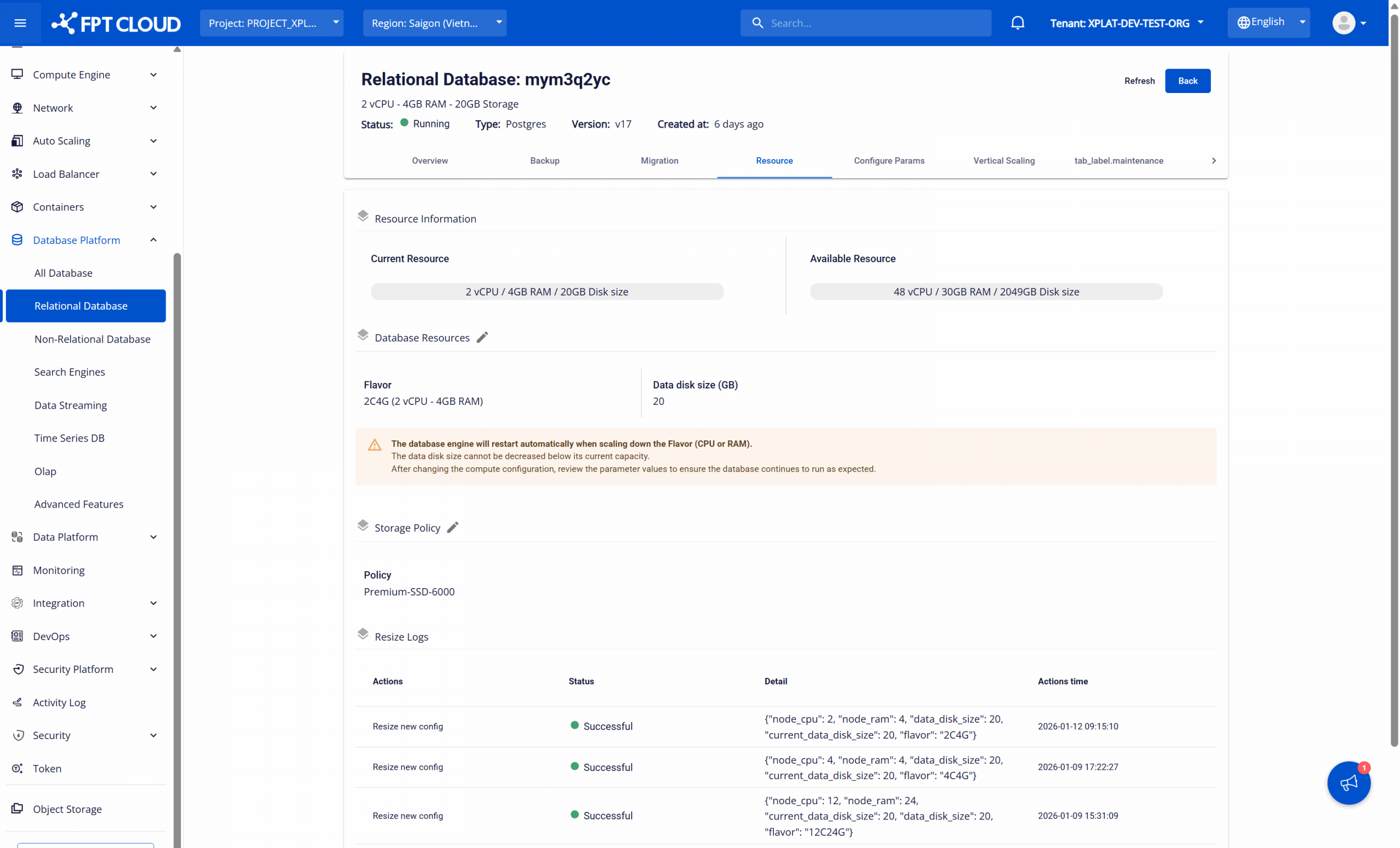
The database cluster resource information is displayed with two main parts: Current Resource and Available Resource.
- Current Resource: Displays the current configuration of the database cluster, including vCPUs, RAM, and data disk size.
- Available Resource: Shows the maximum resource limits available for scaling the database cluster. It also includes vCPUs, RAM, and data disk size.
2. Adjust database cluster resource
Users can update the flavor to scale compute resources (CPU and RAM) up or down, or increase the data disk size, within the available resource limits. Steps to perform:
On the Database Resource Management page, click the Edit Resource icon (pencil icon) next to Database Resources section to open the Update Database Resource dialog.
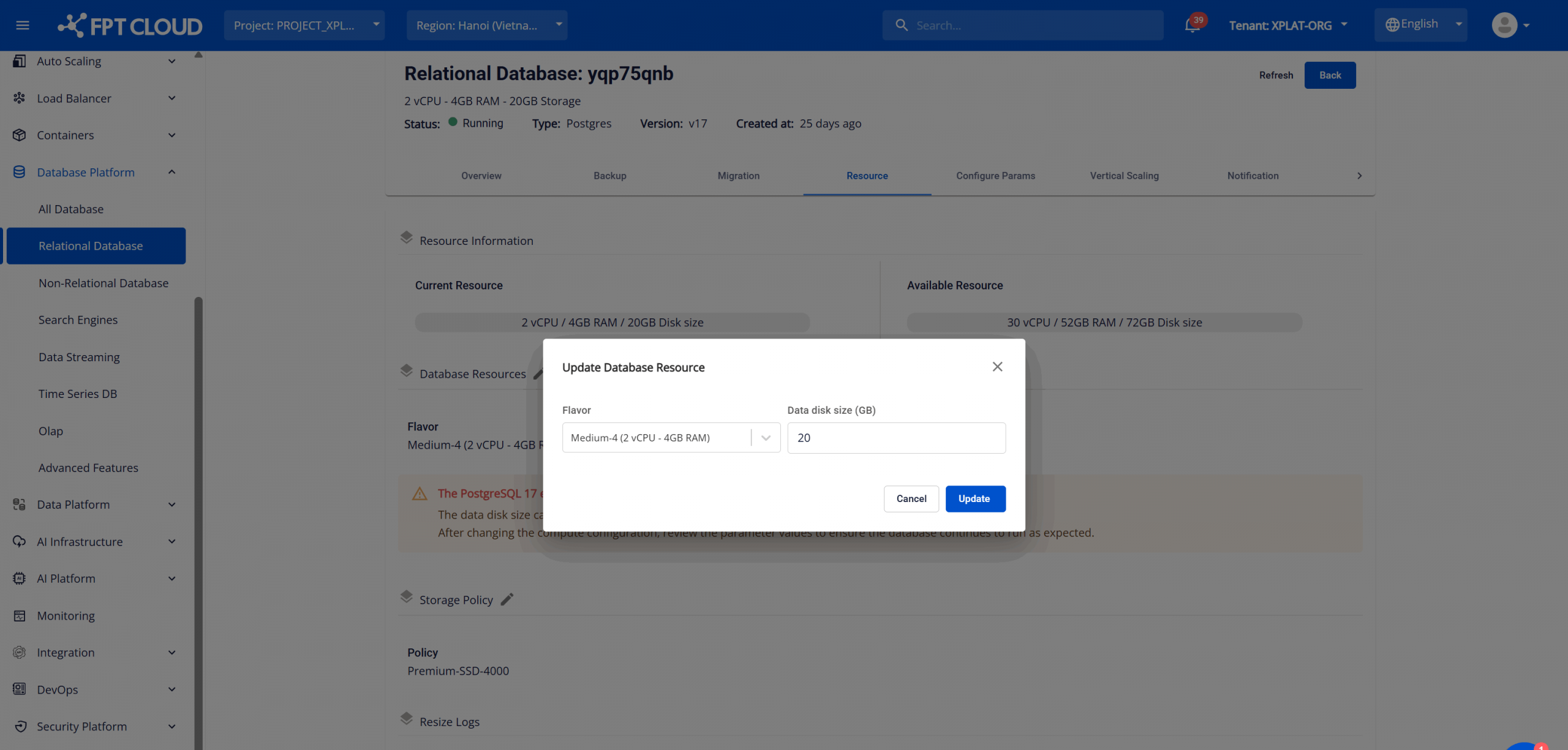
Enter the required changes:
- To modify compute resources (vCPU and RAM), select the desired Flavor from the dropdown list.
- To increase the data disk size, enter the new value in the Data disk size (GB) field.
Click Update to apply the changes.
After confirmation, the database cluster status will change to Resizing, and then return to Running once the process is completed.
The resource update process may take 5–10 minutes. During this time, please avoid performing additional operations on the database cluster.
- Resource limits: Users can modify database cluster resources only within the Available Resource limits. If the new configuration exceeds the available quota, the system will display an error and prevent the change from being applied.
- No support to decrease data disk size (Data disk size): The system does not support decreasing the data disk size. You can onlyincrease the disk capacity; shrinking the disk is not supported.
-
Restart database cluster: When updating compute resource configurations, some database engines require a database cluster restart for the changes to take effect. The restart may be performed automatically by the system, or require manual action by the user after the resource update is completed. Since a restart may cause temporary service interruption. It is recommended to perform these changes during off-peak hours.
Specifically, as follows:
- When reducing compute resources (CPU/RAM), the system automatically restarts the database engine service to apply the updated configuration
- When increasing compute resources, the system does not automatically perform a restart. For PostgreSQL, OpenSearch and ClickHouse, users must manually restart the database cluster after the update to ensure the new configuration takes effect
3. Adjust storage policy
The storage policy directly impacts the I/O performance and operational cost of your database cluster. You can update the storage policy by following direction:
On the Database Resource Management page, click the Edit Storage Policy icon (pencil icon) next to Storage Policy section to open the Update Storage Policy dialog.
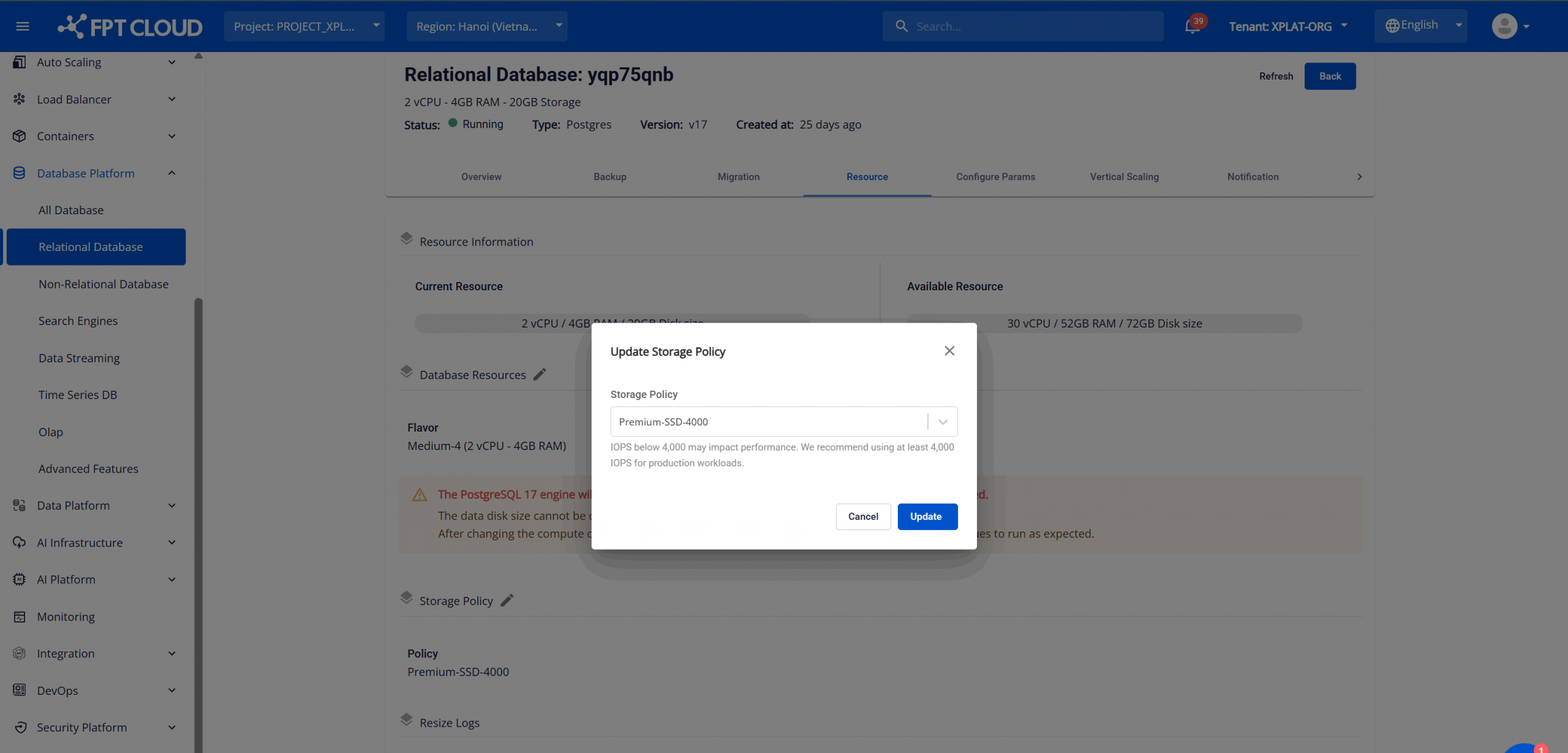
Select a new Storage Policy that fits your workload requirements from the dropdown list and click Update to apply the changes.
The update process may take approximately 5–10 minutes. During this time, please do not perform any other operations on the database cluster.
Recommendation: For production environments, it is recommended to use a Storage Policy with a minimum of 4,000 IOPS (4K) to ensure stable and consistent performance.