
- About Us
-
 Secure, unlimited storage to ensures efficiency as well as high and continuous data access demand.
 Virtual server integration for 3D Rendering, AI or ML
 Enhance application capacity and availability.
 Access to an all-inclusive stack for AI development, driven by NVIDIA’s powerful technology!
 FPT Web Application Firewall provides powerful protection for web applications
 Advanced virtual server with rapid scalability
 Backup and restore data instantly, securely and maintain data integrity.
Advanced virtual server with rapid scalability
Access to an all-inclusive stack for AI development, driven by NVIDIA’s powerful technology!
Enhance application capacity and availability.
Backup and restore data instantly, securely and maintain data integrity.
Recovery, ensuring quick operation for the business after all incidents and disasters.
Backup and restore data instantly, securely and maintain data integrity.
Advanced virtual server with rapid scalability
Access to an all-inclusive stack for AI development, driven by NVIDIA’s powerful technology!
Enhance application capacity and availability.
Backup and restore data instantly, securely and maintain data integrity.
Recovery, ensuring quick operation for the business after all incidents and disasters.
 Diverse throughput and capacity to meet various business workloads.
Secure, unlimited storage to ensures efficiency as well as high and continuous data access demand.
FPT Web Application Firewall provides powerful protection for web applications
Intelligent and Comprehensive Virtual Web Application Firewall - Security Collaboration between FPT Cloud and Penta Security.
The Next generation firewall security service
Easily store, manage, deploy, and secure Container images
Safe, secure, stable, high-performance Kubernetes platform
Provided as a service to deploy, monitor, backup, restore, and scale MongoDB databases on cloud.
Provided as a service to deploy, monitor, backup, restore, and scale Redis databases on cloud.
Provided as a service to deploy, monitor, backup, restore, and scale PostgreSQL databases on cloud. System Monitoring Solution anywhere, anytime, anyplatform
 Helps reduce operational costs by up to 40% compared to traditional BI solutions, while improving efficiency through optimized resource usage and infrastructure scaling.
 - Pricing
- Partner
- Event
Managed – FPT Database Engine
-
 Concepts
-
 Initial Setup
-
 Tutorials
-
 Peformance & Benchmark
-
 Troubleshooting
-
 FAQs
FAQs
-
 Glossary
-
Overview:
In a database management system (DBMS), a parameter is a configuration value that helps adjust and control the characteristics and behavior of the system during runtime. These parameters can affect performance, memory, timeouts, optimization mechanisms, and other aspects of the database system.
Each parameter has specific values that can be changed depending on the database administrator's needs to optimize the system's operation. Parameters can be classified as dynamic or static, and each type has a different way of being applied.
- Dynamic Parameter: These parameters can be changed while the database cluster is running without needing a restart.
- Static Parameters: These parameters require a database cluster restart to take effect.
Understanding and managing parameters correctly is crucial for ensuring the system operates smoothly, efficiently, and meets user requirements.
In FPT Database Engine, the Parameter management feature allows users to view and update the configuration parameters of a running database cluster directly on the FPT Cloud Portal. When updating dynamic parameters, the new values will be applied immediately after the operation is completed without disrupting the service. When updating static parameters, the system will automatically restart the database cluster to apply the new values.
Required permisisons:
| Permission | Action Type | Description |
|---|---|---|
| manageDatabase:Configuration | Edit | Allows modifying database cluster configuration such as parameters, and scaling configurations. |
Update direction:
The following steps describe how to update a parameter value for a database cluster:
Step 1: Open the parameter management page
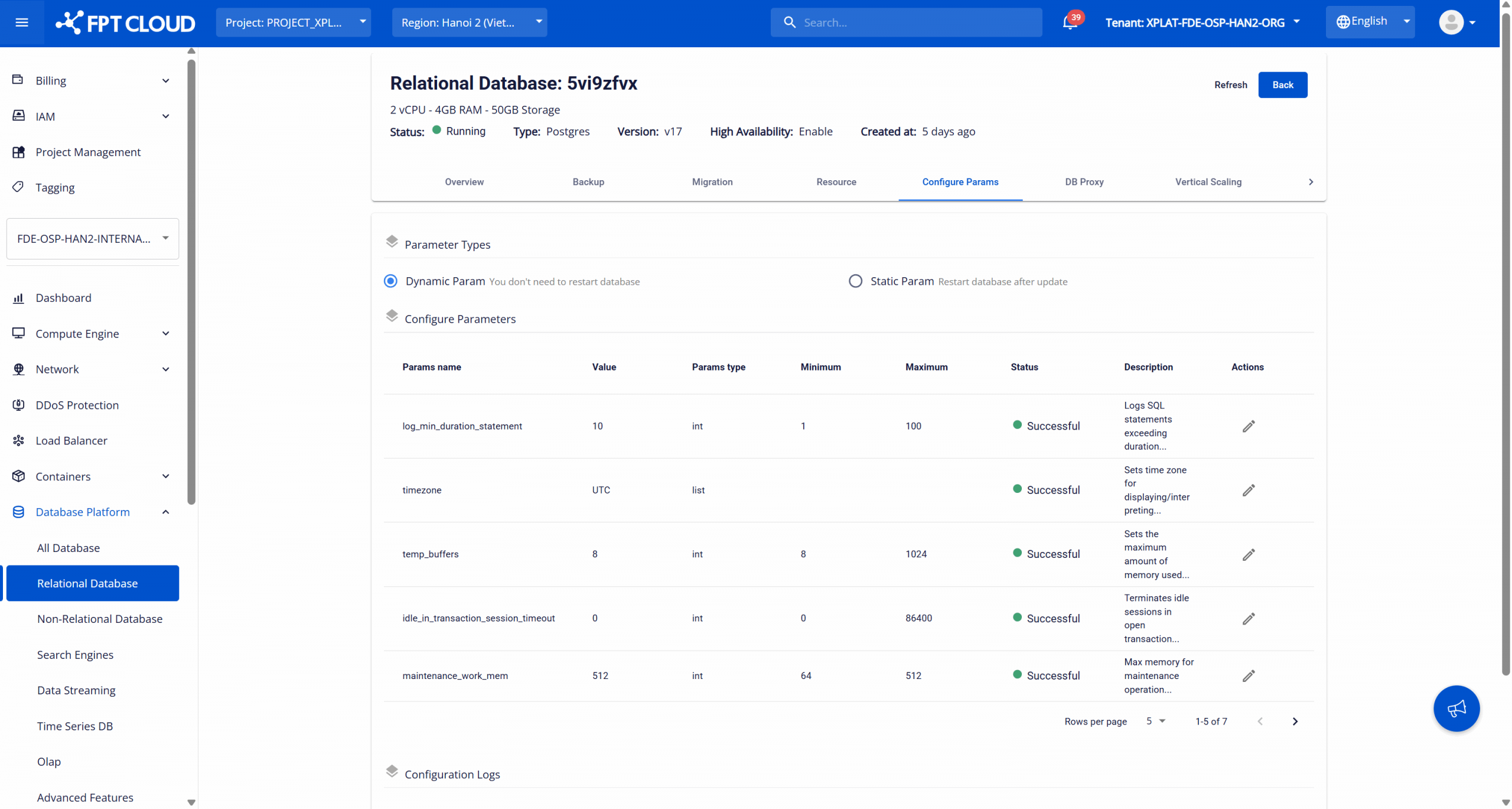
Sign in to the FPT Cloud Console. Open the Database list page > Select the database cluster ID to open the details page > Select the Configure params tab to open the parameter management page. The parameter management page is displayed.
Step 2: Select the parameter type
Select the parameter type you want to update:
- Dynamic Params
- Static Params
Step 3: Update parameter
Click the Edit (pencil icon) on the parameter you want to modify. The Update Configure Params dialog displays detailed metadata of the selected parameter and allows users to update its value within defined constraints.
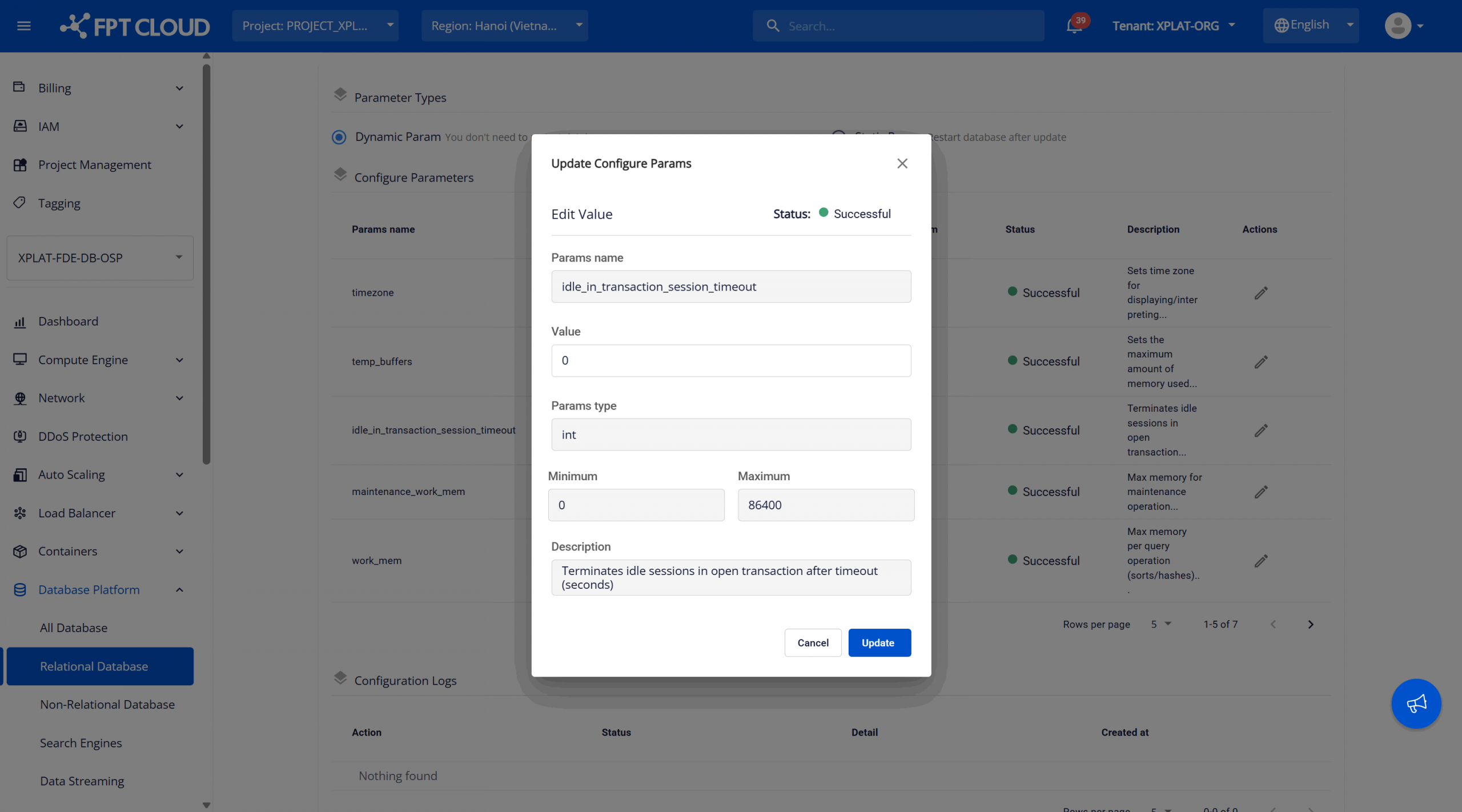
Review the parameter details (data type, minimum and maximum values), then update the value in the “Value” field within the allowed range and select “Update” to apply the change.
Best Practices:
- Adjust parameters gradually and monitor performance impact.
- Prefer dynamic parameters to minimize downtime.
- Schedule maintenance windows for static parameter changes.
- Document all configuration changes for audit purposes.