
- About Us
-
 Secure, unlimited storage to ensures efficiency as well as high and continuous data access demand.
 Virtual server integration for 3D Rendering, AI or ML
 Enhance application capacity and availability.
 Access to an all-inclusive stack for AI development, driven by NVIDIA’s powerful technology!
 FPT Web Application Firewall provides powerful protection for web applications
 Advanced virtual server with rapid scalability
 Backup and restore data instantly, securely and maintain data integrity.
Advanced virtual server with rapid scalability
Access to an all-inclusive stack for AI development, driven by NVIDIA’s powerful technology!
Enhance application capacity and availability.
Backup and restore data instantly, securely and maintain data integrity.
Recovery, ensuring quick operation for the business after all incidents and disasters.
Backup and restore data instantly, securely and maintain data integrity.
Advanced virtual server with rapid scalability
Access to an all-inclusive stack for AI development, driven by NVIDIA’s powerful technology!
Enhance application capacity and availability.
Backup and restore data instantly, securely and maintain data integrity.
Recovery, ensuring quick operation for the business after all incidents and disasters.
 Diverse throughput and capacity to meet various business workloads.
Secure, unlimited storage to ensures efficiency as well as high and continuous data access demand.
FPT Web Application Firewall provides powerful protection for web applications
Intelligent and Comprehensive Virtual Web Application Firewall - Security Collaboration between FPT Cloud and Penta Security.
The Next generation firewall security service
Easily store, manage, deploy, and secure Container images
Safe, secure, stable, high-performance Kubernetes platform
Provided as a service to deploy, monitor, backup, restore, and scale MongoDB databases on cloud.
Provided as a service to deploy, monitor, backup, restore, and scale Redis databases on cloud.
Provided as a service to deploy, monitor, backup, restore, and scale PostgreSQL databases on cloud. System Monitoring Solution anywhere, anytime, anyplatform
 Helps reduce operational costs by up to 40% compared to traditional BI solutions, while improving efficiency through optimized resource usage and infrastructure scaling.
 - Pricing
- Partner
- Event
Managed – FPT Database Engine
-
 Concepts
-
 Initial Setup
-
 Tutorials
-
 Peformance & Benchmark
-
 Troubleshooting
-
 FAQs
FAQs
-
 Glossary
-
A role is a core component of the IAM module on the FPT Cloud Portal. Role management enables system administrators to define and assign roles with specific permissions to users when accessing the FPT Database Engine service.
Using roles enhances security by enforcing fine-grained access control, supports the principle of least privilege, and enables clear separation of responsibilities based on operational requirements.
The following steps provide detailed instructions on how to create a new role and assign the required access permissions to that role.
Step 1: Access the Role Management page
Log in to the FPT Cloud Portal. After logging successfully, from the main menu, select IAM > Roles. The Role Management interface will display the list of existing roles, along with options to create, edit, or delete a role.
Step 2: Create a new role
On the Role Management page, click Create role. The Create New Role screen will appear as follows:
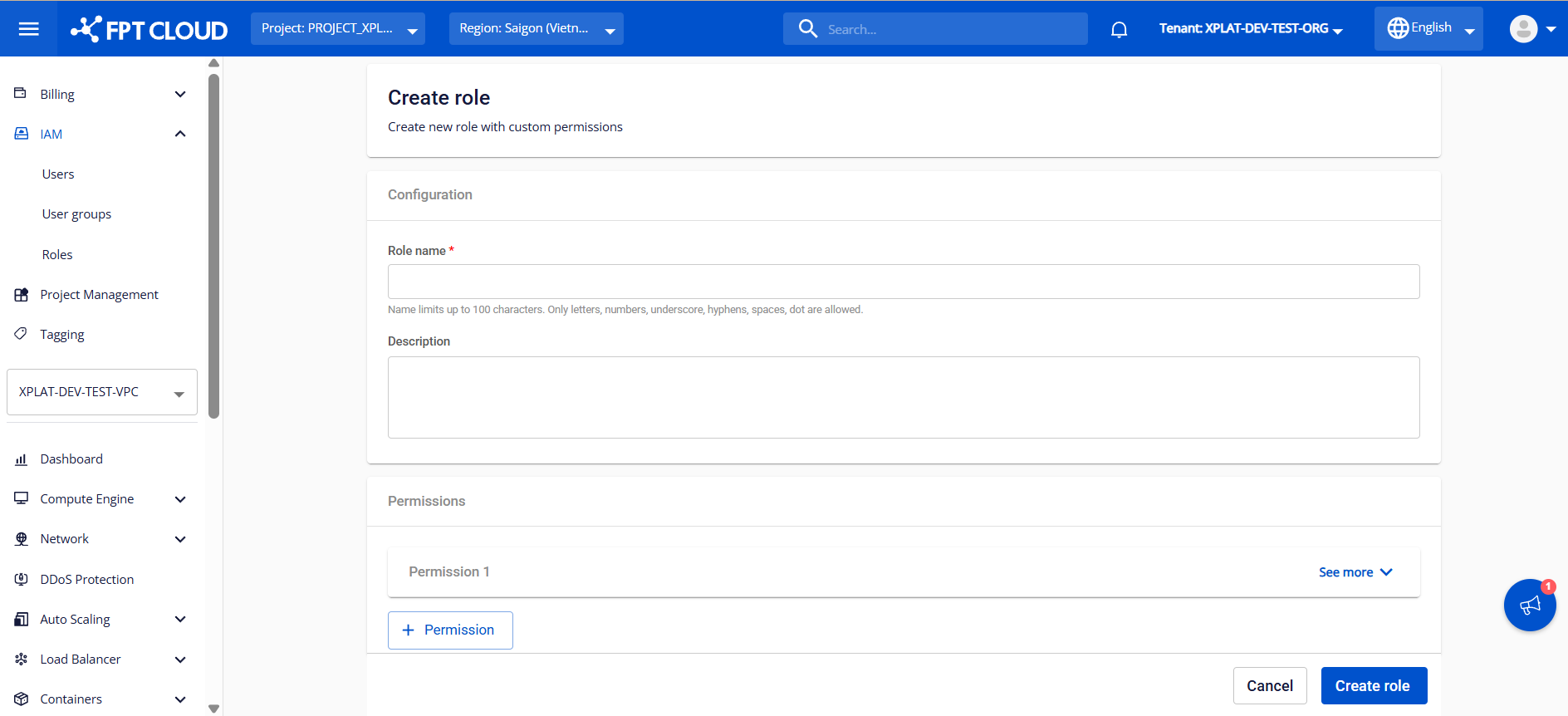
Enter the basic information:
- Role name: A name to identify the role within the IAM system. The name can be up to 100 characters and supports letters, numbers, underscores, hyphens, spaces, and dots. This field is mandatory.
- Description: A description of the role to clarify its purpose, permission scope, or intended user groups. This field helps improve administration and auditing.
- Permissions: List of permissions assigned to the role.
- Permission 1: Displays an assigned permission. Click See more to view permission details or modify its configuration.
- + Permission: Click this button to add a new permission to the role. Permissions can be selected per function.
The configuration process for a permission is detailed in step 3.
Step 3: Configure permissions for a role
Click See more to display the information required for a permission:
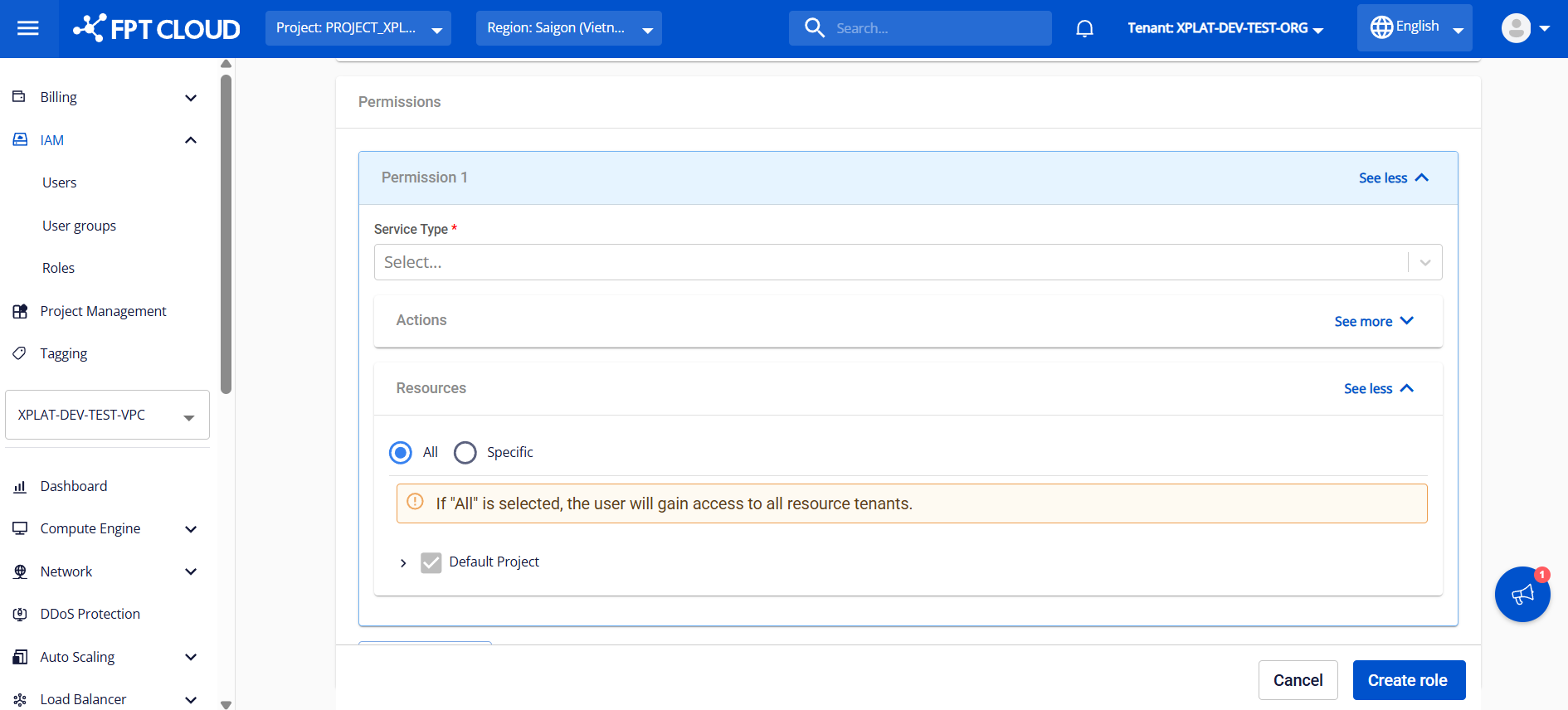
- Service Type: Select the service type that corresponds to the permissions or operations you want to assign. The FPT Database Engine service uses two primary service types: "ManageDatabase" and "FDE".
- ManageDatabase: Provides permissions for standard database management operations, including viewing database information, provisioning, operating database instances, and managing add-on services.
- FDE: Provides permissions for sensitive database operations, such as viewing or managing administrative account credentials of database instances.
After selecting a service type, the system automatically displays all available actions in the Action section and updates the permission name accordingly.
- Action: Defines the actions that the role is allowed to perform on resources. Click See more to view and select the actions assigned to the role. Any action that is not selected will not be granted and will be blocked by the system.
- Resource: Specifies the resources that the role is authorized to access. Click See more to view and select resources assigned to the role. Resources not selected will not be granted access and will be blocked by the system. There are two options:
- All: Grants access to all resources. Selecting this option grants the role default access to all resources.
- Specific: Grants access only to specific resources selected from the list. Note: When using this option, if you want to restrict viewing admin passwords (Service Type “FDE” and action “FDE:hide_admin_password”), you must select the specific databases to restrict in Select resourcefield. Only the selected databases will block password viewing; unselected databases will allow password access.
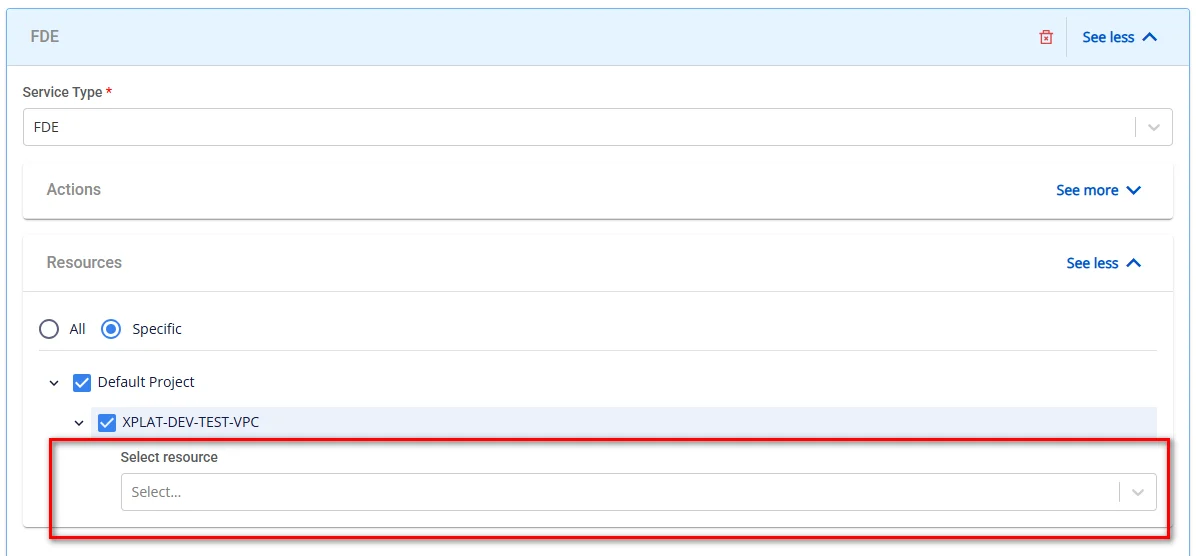
After entering all required information, select Create role to complete the role creation process.
After the role is created successfully, the new role will appear in the management list with the status Active and will be ready to be assigned to users. For instructions on assigning permissions, refer to User group management.
When needed, you can perform the following actions on the created role:
-
Edit role: This function allows you to modify the role’s name, description, and permissions in case of access requirement or security policy changes. To access this feature, on the Role Management page, select Edit role action next to the role you want to modify. Make the necessary changes and click Save to apply.
-
Delete role: This function allows you to remove unused roles, keeping the access control system clean and accurate. On the Role Management page, select Delete next to the role you want to remove. Confirm the deletion in the warning dialog to complete the process. Warning: Deleting a role may impact the access permissions of users and user groups currently assigned to that role. Once the role is deleted, all associated permissions are revoked immediately, which may cause disruption to the management and operation of cloud and DBaaS resources. Ensure that the role is not assigned to any user group or IAM user before proceeding with the deletion.