- About Us
-
 Secure, unlimited storage to ensures efficiency as well as high and continuous data access demand.
 Virtual server integration for 3D Rendering, AI or ML
 Enhance application capacity and availability.
 Access to an all-inclusive stack for AI development, driven by NVIDIA’s powerful technology!
 FPT Web Application Firewall provides powerful protection for web applications
 Advanced virtual server with rapid scalability
 Backup and restore data instantly, securely and maintain data integrity.
Advanced virtual server with rapid scalability
Access to an all-inclusive stack for AI development, driven by NVIDIA’s powerful technology!
Enhance application capacity and availability.
Backup and restore data instantly, securely and maintain data integrity.
Recovery, ensuring quick operation for the business after all incidents and disasters.
Backup and restore data instantly, securely and maintain data integrity.
Advanced virtual server with rapid scalability
Access to an all-inclusive stack for AI development, driven by NVIDIA’s powerful technology!
Enhance application capacity and availability.
Backup and restore data instantly, securely and maintain data integrity.
Recovery, ensuring quick operation for the business after all incidents and disasters.
 Diverse throughput and capacity to meet various business workloads.
Secure, unlimited storage to ensures efficiency as well as high and continuous data access demand.
FPT Web Application Firewall provides powerful protection for web applications
Intelligent and Comprehensive Virtual Web Application Firewall - Security Collaboration between FPT Cloud and Penta Security.
The Next generation firewall security service
Easily store, manage, deploy, and secure Container images
Safe, secure, stable, high-performance Kubernetes platform
Provided as a service to deploy, monitor, backup, restore, and scale MongoDB databases on cloud.
Provided as a service to deploy, monitor, backup, restore, and scale Redis databases on cloud.
Provided as a service to deploy, monitor, backup, restore, and scale PostgreSQL databases on cloud. System Monitoring Solution anywhere, anytime, anyplatform
 Helps reduce operational costs by up to 40% compared to traditional BI solutions, while improving efficiency through optimized resource usage and infrastructure scaling.
 - Pricing
- Partner
- Event
Managed – FPT Database Engine
-
 Concepts
-
 Initial Setup
-
 Tutorials
-
 Peformance & Benchmark
-
 Troubleshooting
-
 FAQs
FAQs
-
 Glossary
-
The Push backup to S3 feature enables users to push database backups to an S3 compatible storage, supporting long term retention, archival, or external consumption use cases. The feature is particularly useful for disaster recovery, auditing, or replicating data to external systems.
Currently, FPT is providing this feature for various engine types: PostgreSQL, MySQL, MariaDB, Microsoft SQL Server, Redis, MongoDB and TimescaleDB.
This guide helps you use the feature to manage backing up data to S3, supporting secure storage, recovery goals, or data integration outside the system.
1. Add new S3 configuration
The Add new S3 configuration feature allows users to configure S3-compatible storage information for use as a backup storage destination.
Prerequisites:
- A valid S3 bucket is available.
- Access Key and Secret Key with permission to access the bucket.
- The S3 endpoint is reachable from the system.
The steps are as follows:
Step 1: Open the S3 configuration management page
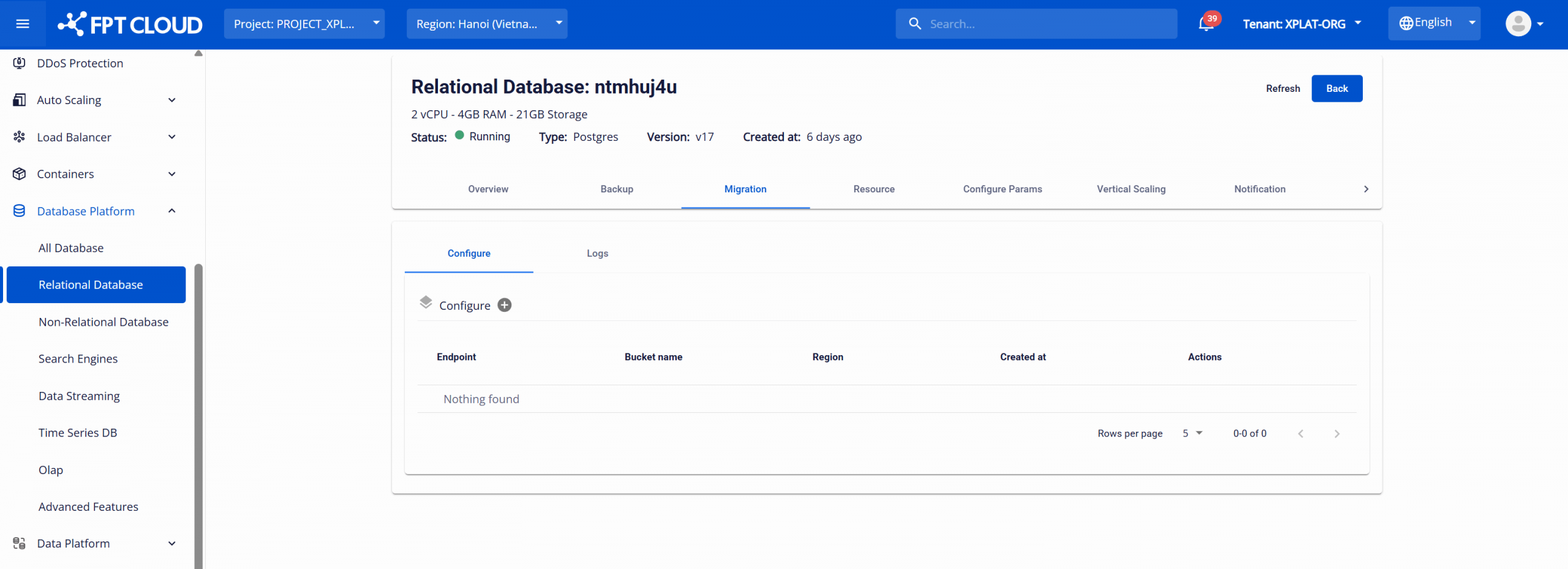
Sign in to the FPT Cloud Console. Open the Database cluster list page > select Cluster ID to open the details page > select the Migration tab. The S3 configuration management page is displayed.
Step 2: Add S3 configuration
On the Migration screen, click the Add S3 Configuration button (the plus icon next to the "Configure" section) to begin adding the S3 configuration. The system will display the following dialog box:
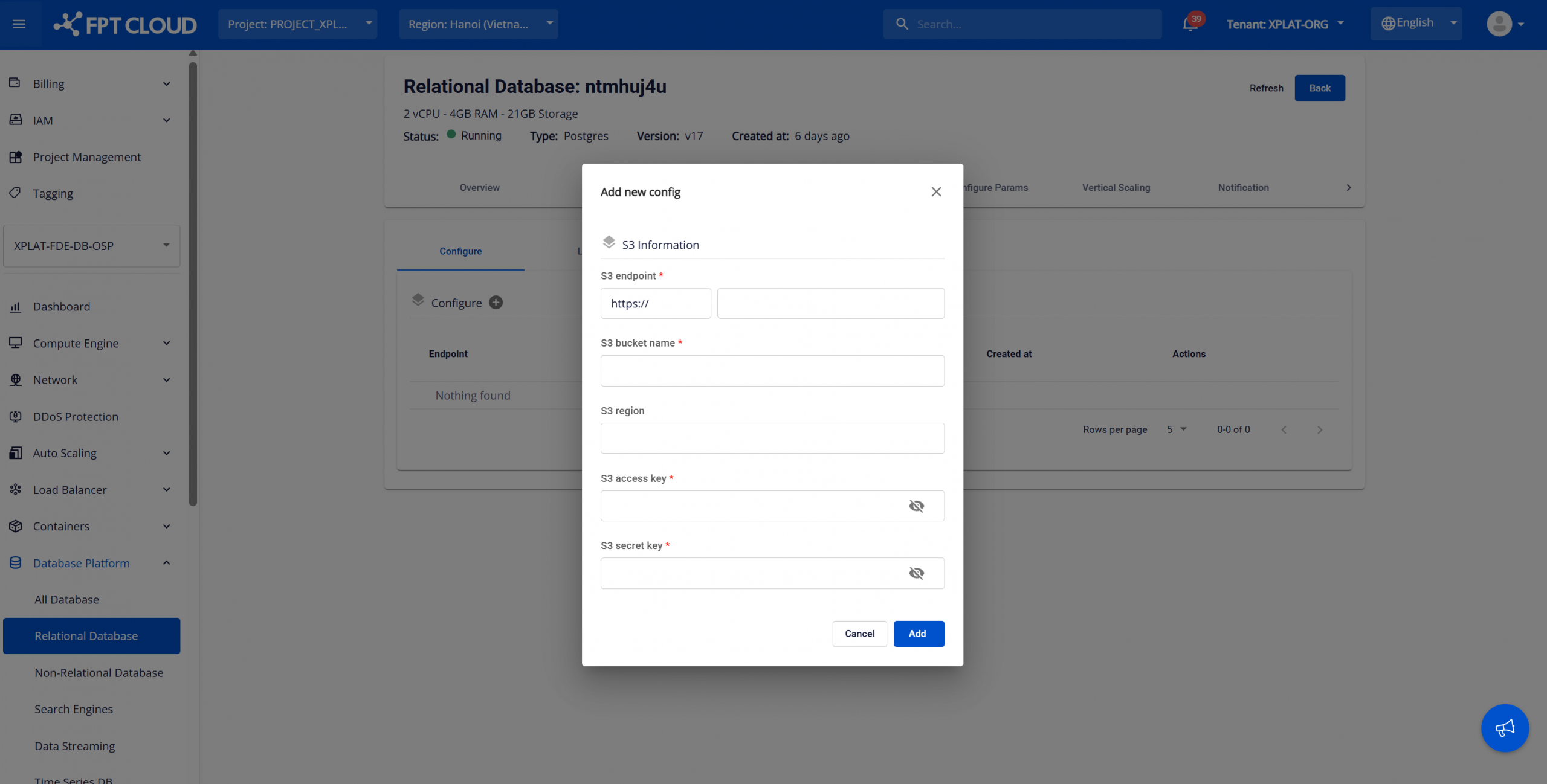
Enter all required S3 information:
- S3 endpoint: S3 service endpoint (e.g: https://s3.amazonaws.com for AWS S3).
- S3 bucket name: Name of the bucket used for storing backup data.
- S3 region: Region where the S3 bucket is located (if applicable).
- S3 access key: Access key used for S3 authentication.
- S3 Secret Key: Secret key associated with the access key.
Security Note:
- Access Key and Secret Key are encrypted and masked during input.
- Do not share S3 credentials with unauthorized parties.
After entering the information, review the configuration and click Add to save it. Once the configuration is completed successfully, the S3 storage will be available for pushing backup files to S3 (depending on the supported database engine).
When needed, users can perform the following actions on an existing S3 configuration:
- Edit S3 configuration: This action allows users to update the configured S3 information. On the Migration page, click the Edit icon (pencil icon) corresponding to the S3 configuration you want to modify. Update the required fields and click Update to save the changes.
- Delete S3 configuration: This action allows users to remove unused S3 configurations, helping keep the system organized and accurate. On the Migration page, click the Delete icon (trash icon) corresponding to the configuration you want to remove. Confirm the action in the warning dialog to complete the deletion.
2. Push backup to S3
The Push backup to S3 feature allows users to push existing database backup files to a pre-configured S3 storage.
Prerequisites:
- A valid S3 storage configuration is available.
- The database cluster has at least one successful backup.
- The database engine supports the Push S3 feature.
Steps to perform restore:
Step 1: Access the restore screen
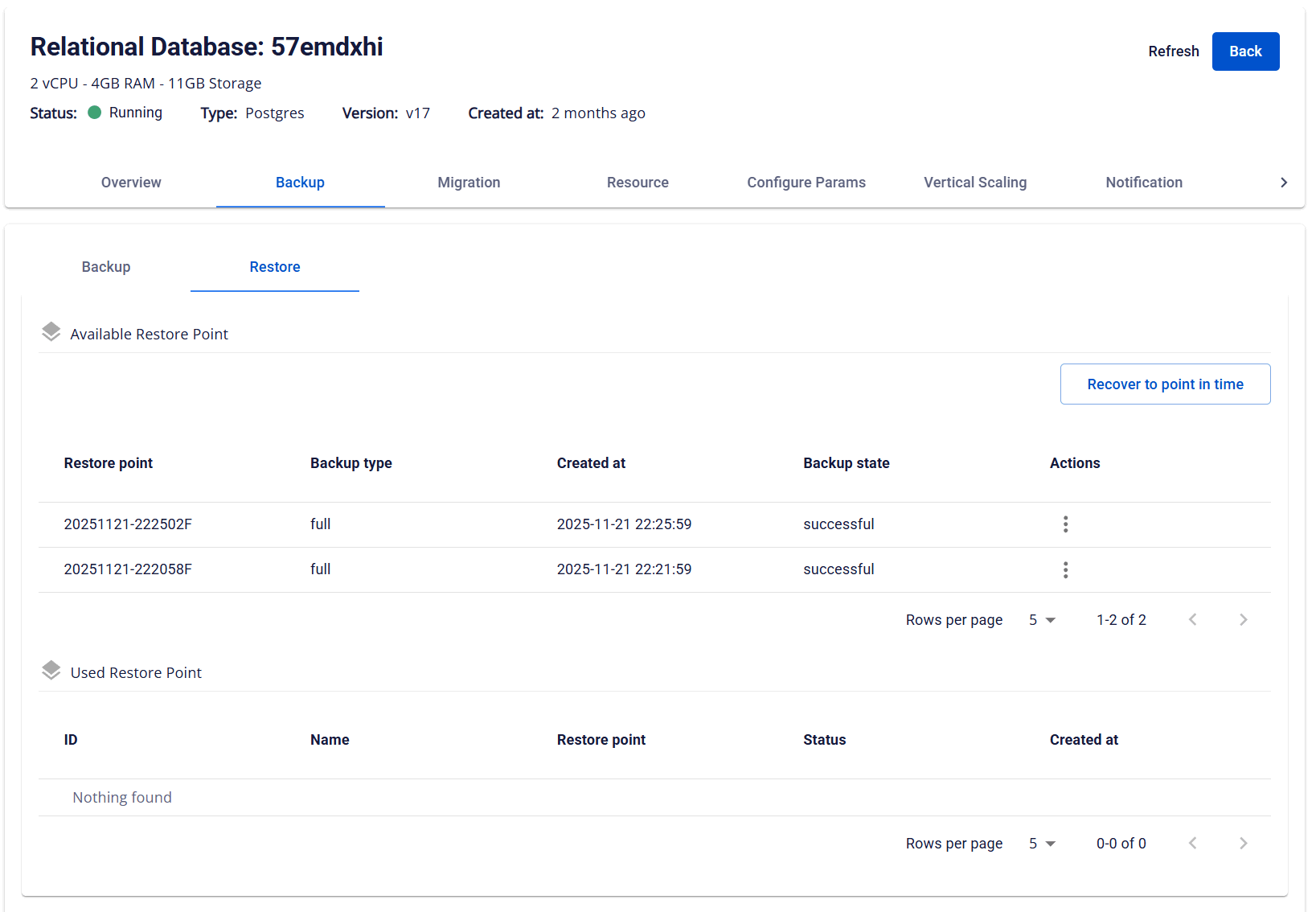
From the menu, select Database Platform → choose All Database or the relevant database engine group → click the Cluster ID of the database cluster to restore → select the Backup tab → choose the Restore sub-tab. The system displays a list of Available Restore Points, including backup types (full backup or different backup):
Step 2: Perform push S3
In the Actions column, click the ellipsis icon (⋮) corresponding to the desired restore point > select Push S3. The Push S3 dialog displays a list of available S3 configurations:
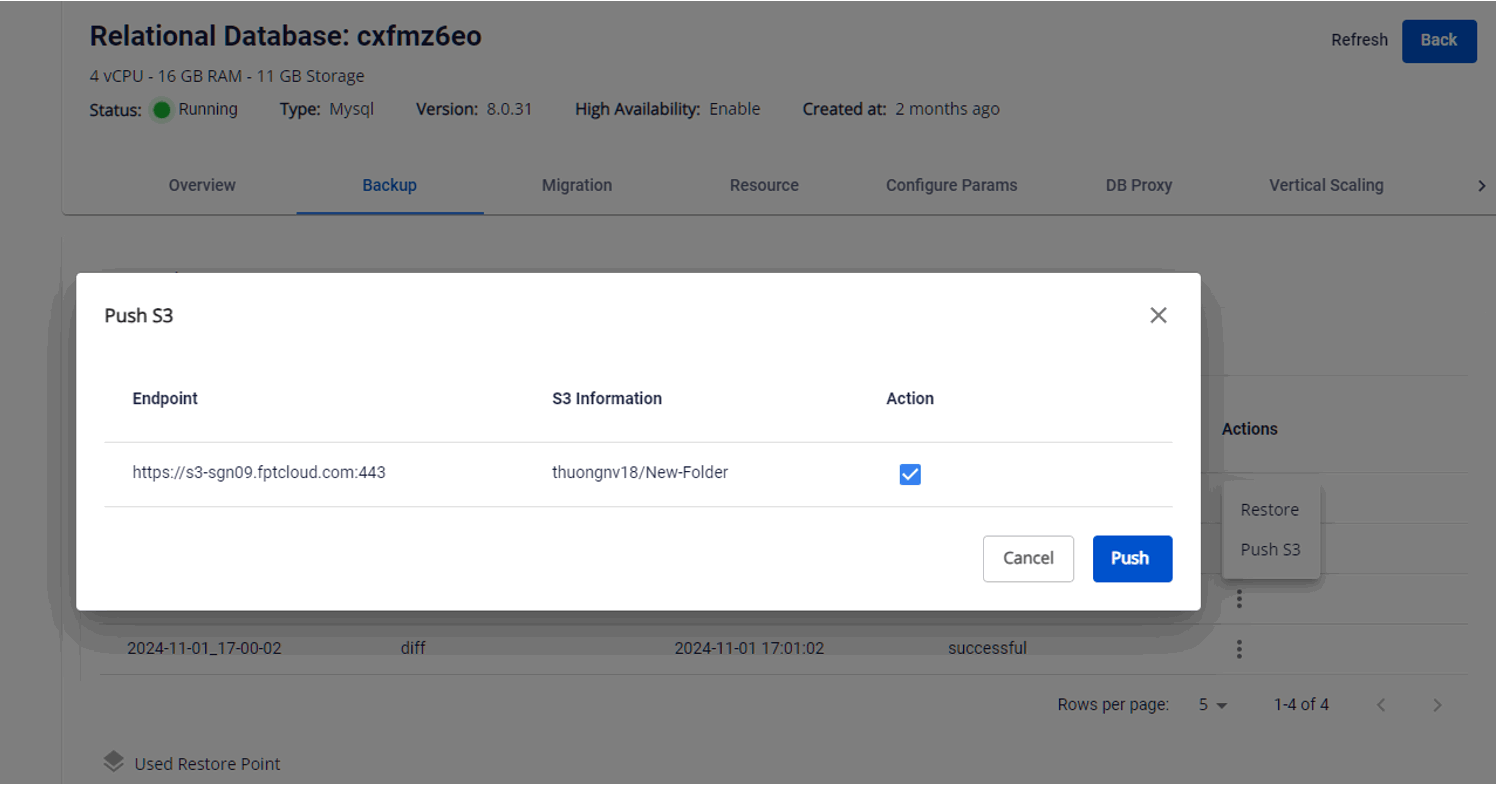
Select the desired S3 storage by checking the checkbox in the Action column then click Push action to start pushing backup files to S3.
To monitor the status of the file push process to S3, go to the Migration tab and select the Logs sub-tab to view detailed information.
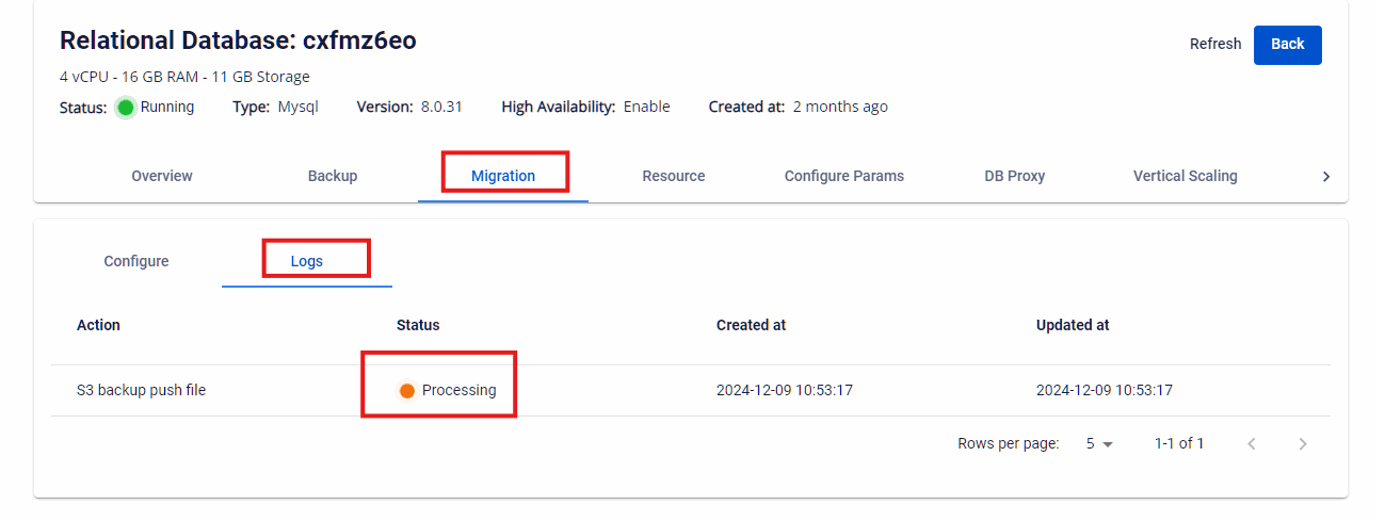
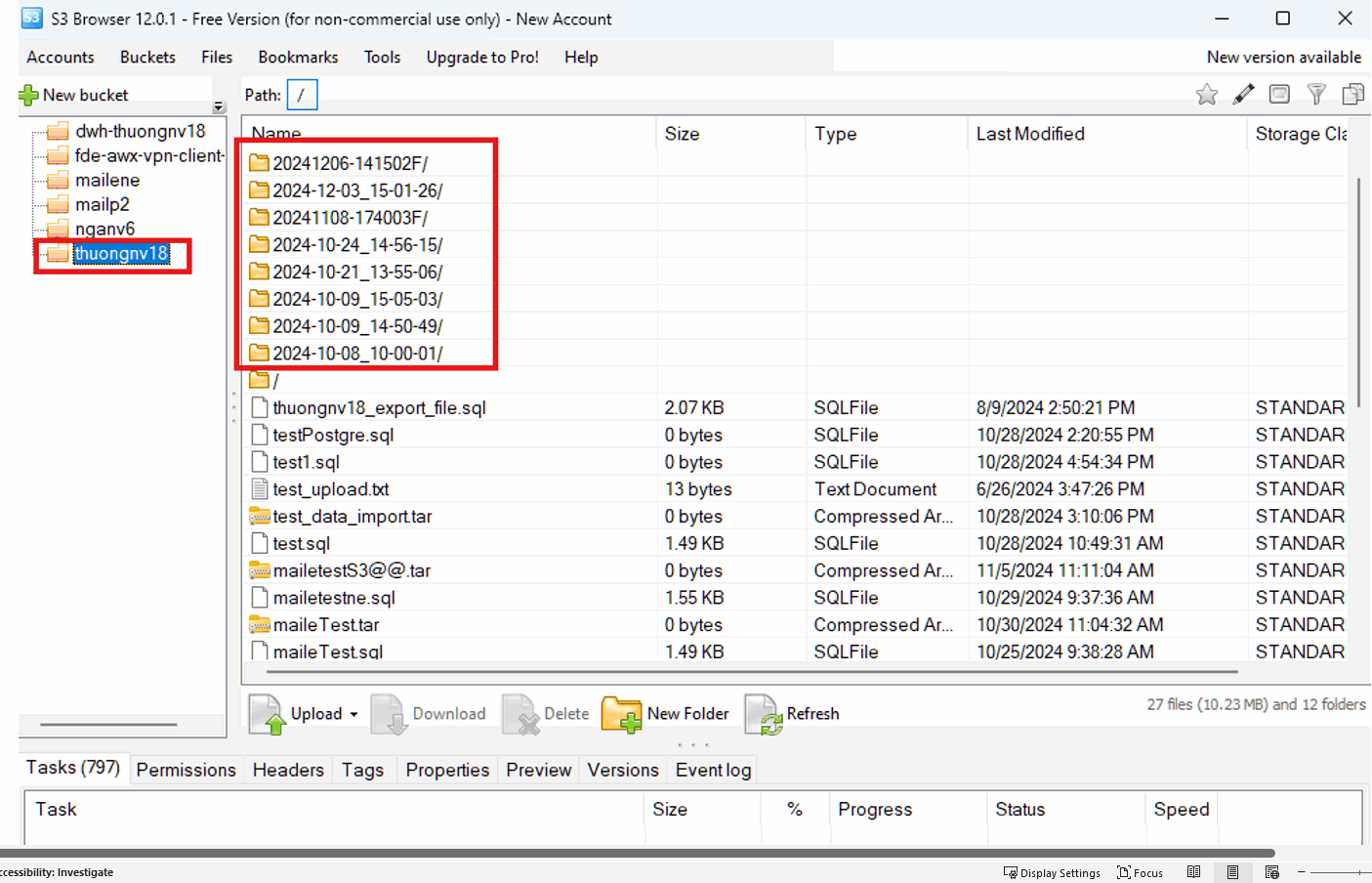
After the operation is completed successfully, the database cluster’s backup files will be pushed to the selected S3 storage. To verify the result, users can access an S3 browser or the corresponding S3 management tool to confirm that the files have been pushed.